Category: Technical

  • Tabbed Views

    Tabbed Views

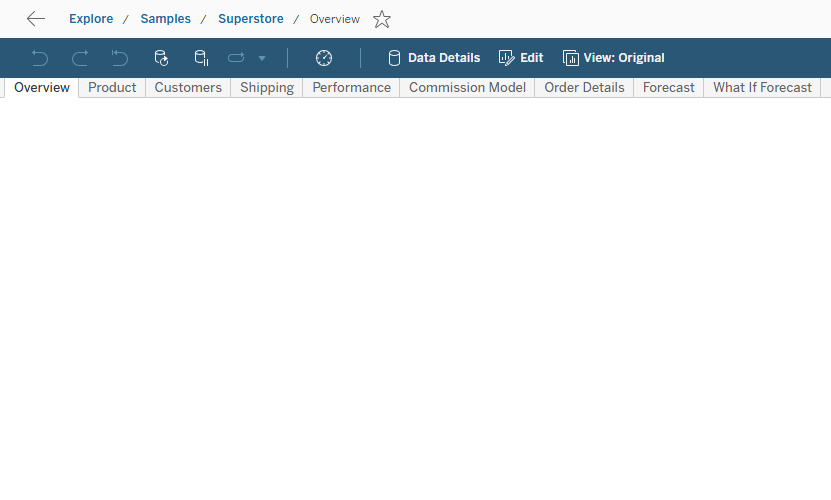
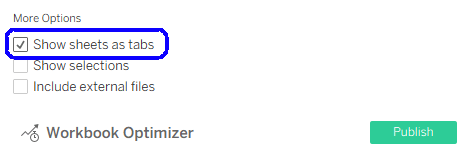
    Every time we publish a workbook in Tableau, to Server, Cloud, or Public, we have the option to select the “Show sheets as tabs” checkbox. Obviously, this affects the display of the worksheet/dashboard tabs at the top of the view, but what else? And how has it changed over the years?

    Permissions

    A workbook with tabbed views counts as one entity for permissions. Any user who can access one view, can see all the others as well. They can also move between the views using the tabs, of course – that’s why the permissions can’t be separated: the display shows all the published tabs by default, so the user has access to them.

    If tabbed views are disabled, each view in the workbook has its own permissions. Users can’t move between them using tabs, and they have to exit back to the workbook level first – so permissions can be set separately, if required. I won’t go into detail about how to actually set permissions at the view level, the documentation is here.

    This enables the owner of the workbook, or administrator, to fine-tune the permissions if necessary, so some users don’t have access to certain dashboards, even in the same workbook – and in certain scenarios this is definitely a relevant use case.

    Dashboard Size

    The lesser known effect of setting tabbed views is the dashboard sizing. When tabbed views are on, all dashboards will be displayed as the same size in the browser, and if some have different sizes, the largest is used for all.

    What does this actually mean? If all dashboard sizes are set to “Automatic”, then there’s no problem. But suppose that you have one long-form dashboard in the workbook, with a fixed height of 3000 pixels that enables the user to scroll down. If tabbed views are on, all the dashboards will enlarge to 3000 pixels in height. And the same goes for the width, of course.

    If tabbed views are off, there are no such limitations, and every view can have a different size.

    Navigation

    One of the features that has changed over time is the navigation between views. In previous versions of Tableau, turning off tabbed views disabled the filter actions that navigate between views. I don’t recall in which version this changed, but now all the navigation options work even when tabbed views are off: filter actions, go to actions, and navigation buttons.

    This was actually a serious limitation in the past, because you nearly always had to compromise on something – the permissions, size, or navigation. Now that there are no limits on navigation, it’s much easier to decide which option to choose.

    One exception, of course – if tabbed views are off, you can’t navigate to a view for which you don’t have permissions. There are different results: a filter action simply won’t do anything, while a navigation button is grayed out and will display an “Access denied” message if clicked.

    Performance

    Even though there are still some resources on the internet saying that when you open a workbook with tabbed views, Tableau calculates all the dashboards in the workbook, that is totally incorrect.

    There is no difference in performance between tabbed and un-tabbed views. Tableau loads a view only when it is accessed by the user, and it always loads the workbook metadata when you access the first view – because it is stored as a single XML file. I have verified this using performance recordings, but it was always rather obvious: I’ve seen tabbed workbooks with 20-30 dashboards loading the first one in no time at all, so there’s no way all of them were calculated within that time. So don’t worry, if you have performance issues they won’t be caused by the tabs.

    Summary

    Tabbed ViewsNo Tabs
    PermissionsSame for all viewsCan be set separately
    Dashboard SizeBy largest viewIndependent for each view
    NavigationOKLimited only by permissions
    PerformanceOKOK

  • How to Un-nest Arrays using Tableau

    How to Un-nest Arrays using Tableau

    This is a revised copy of my original post in the Tableau Community blogs from 2023.

    Over the years I’ve encountered many examples of data that includes arrays of values within a single field – either in JSON format or as simple text, such as this:  [[4,0],[5,3],[7,3],[8,0],[4,0]]

    Usually the data can be un-nested using SQL or JSON functions into a set of separate rows, which can then be linked to the original data table as a separate table. However, a few years ago I was working on a system with no such option: the original data was in ElasticSearch, and our ODBC driver didn’t enable any un-nesting functions. And we needed to get the row data from the arrays.

    It turns out that Tableau can do this quite easily. Here is the solution:

    1.      Build a regular data source from your table, with the array field as normal text. In the example, it’s called [Shape Coordinates].

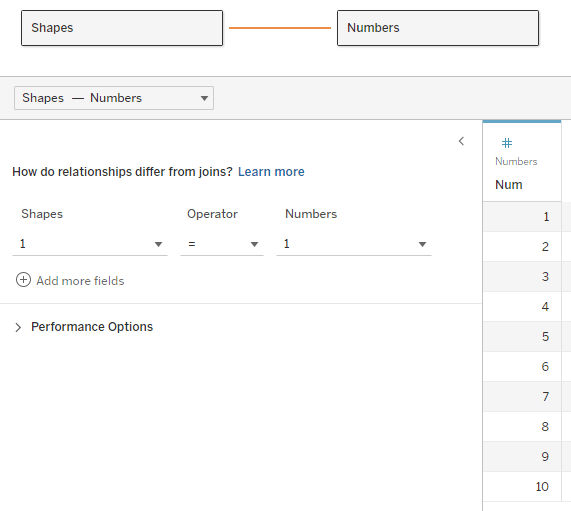
    2.      Create a table of numbers from 1 to N, with N being larger than the maximum size (number of items) in your array. The table can be in Excel, the database, or any other format. Add the table to the data source and join it to the data table using a relationship, using a full cartesian join – meaning that you create a relationship calculation with an identical value (I use 1) on each side.

    Note – the example here unnests a two-dimensional array. Each value has any number of pairs of coordinates, specifying a shape to be drawn on the page. The real data actually had pairs of real coordinates (latitude/longitude) specifying a GPS track.

    Now, for every row of data we have numbers from 1 to N in the corresponding table, which we will use to find the 1st, 2nd, 3rd, and so on… members in the array, by splitting it using the commas and brackets in the string. I would have loved to use the SPLIT function here, but it doesn’t accept a field or variable as a parameter, so we’ll use FINDNTH instead:

    3.      We find the start of each member: Start → FINDNTH([Shape Coordinates], “],[“, [Num]-1)

    Note that I’m looking for “],[“, because the comma alone is not enough – it will find the split between each pair as well.

    4.     The end of each member: End → FINDNTH([Shape Coordinates], “],[“, [Num])

    5.      The length of each member is basically End minus Start (the last member has no End, so I use a maximum value, longer than any string that I would expect:

    Length → IF [Start] > 0 THEN

       IF [End] > 0 THEN [End] – [Start]

       ELSE 20

       END

    END

    6.      Now the actual split: Split → MID([Shape Coordinates], [Start], [Length])

    7.      And clean up all the brackets and commas: Pair → REPLACE(REPLACE(REPLACE([Split], “],[“, “”), “]”, “”), “[“, “”)

    I’ve now unnested my array and retrieved an ordered list of values for each row of data. In this case the values are pairs of numbers, but they could be any type of data. If there are less than N members in the array, the Split and Pair fields return Null and can be filtered out. The data looks like this:

    8.      I split the pairs into X and Y coordinates:

    X → FLOAT(SPLIT([Pair], “,”, 1))

    Y → FLOAT(SPLIT([Pair], “,”, 2))

    9.      Now I can visualize my geometric shapes on a worksheet using polygons:


    Discussion

    This technique works, and caused no performance issues on a dataset that included tens of thousands of records, with each array having up to 50 pairs of latitude/longitude values.

    The “normal” solution would unnest the arrays using SQL, thereby creating a new data table with a large multiple of the original number of records, though with very few fields (ID, X and Y). If you are visualizing only a small number of records at a time, I would expect much better performance from my technique, which calculates the array data on the fly and only for the specific records you need. However, if you are filtering or aggregating by array data from thousands or millions of records in one view, a pre-calculated table would probably be much faster.

    The sample workbook is on Tableau Public:  https://public.tableau.com/app/profile/dan.chissick/viz/UnnestingArrays/UnnestingArrays

  • Published Data Sources and Calculated Fields

    Have you ever tried to edit a calculated field in Tableau, and seen only the “Edit copy” option? This appears when you’re connected to a published data source, and the field was published together with the data source – so it can only be edited through there.

    So should we publish calculated fields within the data source? What are the advantages and disadvantages? And how do we “move” a calculated field to our workbook when necessary?

    Note that I’ll use the abbreviation “DS” for “data source”, as it appears quite a lot in the text.

    I’ll start with the disadvantages:

    • As already noted, you can’t edit a calculated field that’s published in the data source. In my opinion this is a major issue – from my experience in both development and consulting with Tableau, the process includes a lot of iteration and trial and error, and the “Edit copy” barrier is a real nuisance.
    • Similarly, “Replace references” won’t work either. I’ve encountered several situations in which someone replaced a field, and was surprised that the results didn’t change. On checking, we found that the referencing fields were in the published DS, so they couldn’t be affected.
    • Performance.
      This is a tricky one. But we once analyzed performance on a data source with a lot (I think ~100) of published fields, before and after moving them to the workbook, and there was a significant improvement when the fields were with the dashboard – not in query execution but in compilation time, which can take several seconds. I don’t know the exact reason for this, but the results are consistent: you can save 20-30% of compilation time when the calculations are not in the DS.

    Advantages:

    • If a calculated field is in the data source, you can re-use it in different workbooks. It also prevents different developers from modifying “standard” calculations.
    • Materialization – pre-calculation of some fields in extracts – may improve performance slightly, but is relevant only for very simple calculations.

    Recommendations

    Note that these are my personal recommendations, and other opinions may be available.

    • In general, avoid embedding calculated fields in published data sources.
    • Notable exceptions:
      • Basic row-level calculations, such as:
        • [Price] * [Quantity]
        • [First Name] + “ “ + [Last Name]
        • DATEDIFF(“day”, [Start Date], [End Date])
        • IFNULL([any field], “N/A”)
      • Standardized business logic calculations, that you are confident will not change over time, such as:
        • Profit ratio:  SUM([Profit]) / SUM([Sales])
      • Groups, when they are used to clean up or organize a dimension.
      • Remember that there is no such thing as “pre-calculation” in Tableau beyond row level, so any fields using aggregations, level of detail functions, parameters, and of course table calculations, give you no benefit when published in the DS.

      So what happens in real life?

      In many cases, we create a data source and perform lots of testing or iterations, or even develop dashboards in the same workbook. But then we need to split the data source and publish it separately, while leaving the calculated fields with the dashboards. Here is a tested and proven process for doing this:

      Our starting point is a workbook with a local data source (extract), any number of calculated fields, and some dashboards (my example has just one).


        Step 1 – Copy the data source to a new workbook:

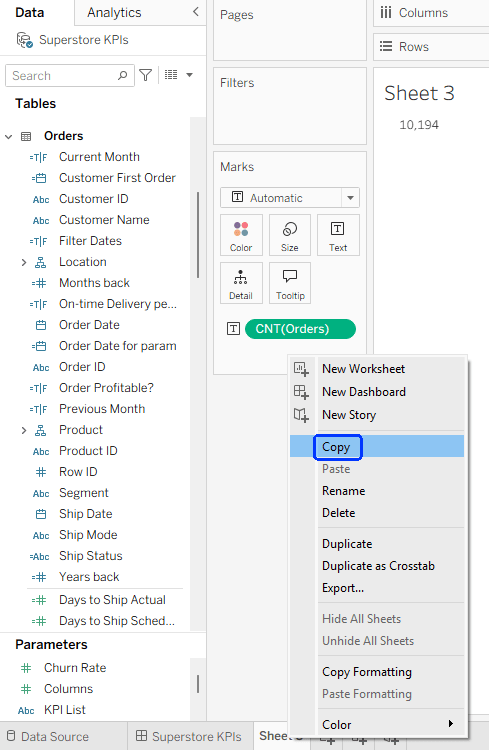
        • Create a new worksheet.
        • Drag any field from the data source to the worksheet.
        • Right-click on the worksheet tab → Copy
        • File → New from the top menu.
        • In the new workbook: right-click on “Sheet1” and Paste.

        Step 2 -Remove all calculations from the data source in the new workbook:

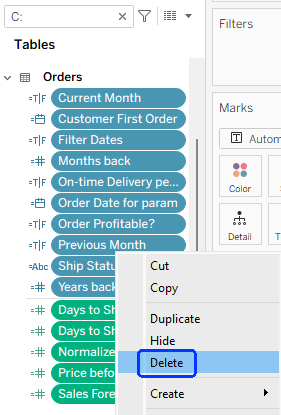
        • Click the filter icon at the top of the data pane, and select Calculation.
        • Select all of the fields now in the list (or batches of several each time, if there are too many), right-click and Delete. If any warning messages appear, you can ignore them.
        • Note that if you wish to retain any calculated fields in the data source, then they shouldn’t be deleted at this stage.
        • Delete any parameters or sets as well.

        Step 3 – Publish the data source (you may have to sign in to the server first)

        I always save the workbook in which I developed a data source, so I can easily make modifications and republish when needed. Therefore, I recommend not to check the “Update workbook to use the published data source” checkbox when publishing, and to save this workbook under a suitable name (“xxx DS.twb”) when finished.

        Step 4 – Connect to the published data source

        • Return to your original workbook.
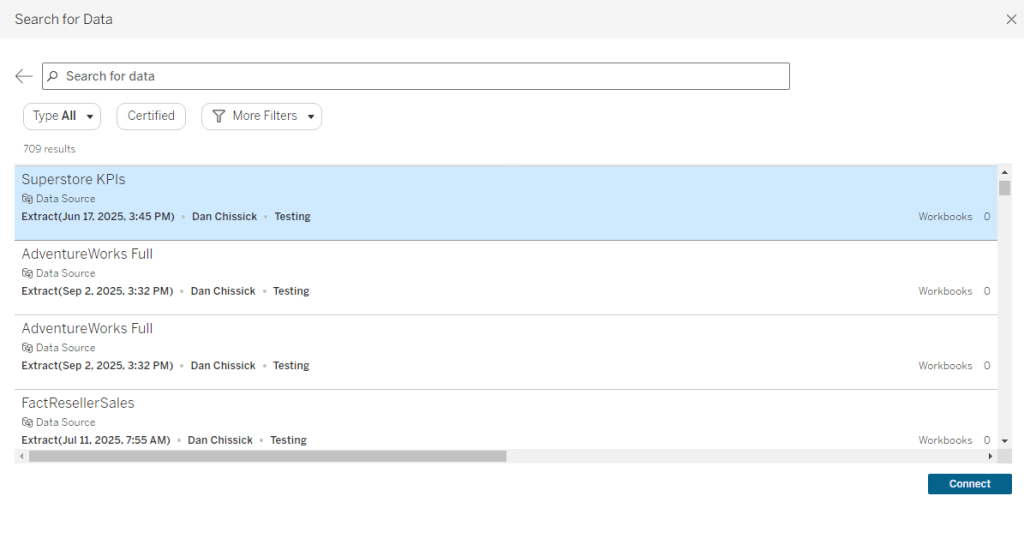
        • Data → New data source → Tableau Server
        • Select the newly published DS.

        Now your original DS, with all the calculated fields, and the published DS, should appear together in the Data pane. One has the local extract icon (), and the other has the published DS icon.() Note that the published DS has no (or very few) calculated fields, compared to the local DS.


        Step 5 – Replace the data source

        • Right-click on the local DS, “Replace Data Source”, and make sure the local and published data sources are selected in the dialog box.
        • Click OK
        • You should see that all the calculated fields from the local DS are added to the published DS.
        • Close the local DS, and rename the published DS if necessary.

        Now you have a development workbook that is connected to a published DS, but with local calculated fields – that you can edit freely. You can verify that only the fields that you retained when publishing are “locked” for editing.


        Summary

        Published data sources are standard best practice, and you need to decide where to place your calculated fields, but it’s useful to know that there’s a relatively straightforward solution for moving those calculated fields from the data source to the workbook, at any stage of the development cycle.

        As a bonus, while writing this post I thought of a tiny new feature idea for Tableau: find a way to mark calculated fields from a published DS as “locked”, so the developer can identify them in the data pane. Please add some upvotes, and maybe we’ll see it implemented at some point in the future:

        https://ideas.salesforce.com/s/idea/a0BHp000016LlntMAC/differentiate-between-locked-and-editable-calculated-fields

      • The Measures Pivot

        The Measures Pivot

        Tableau shows great flexibility in creating and displaying measures, with a built-in “Measure names” dimension that has some of the characteristics of a regular dimension, but not enough of them. I have encountered several use cases for a “real” Measures dimension:

        • Enabling the user to select a set of measures to be displayed in a table or chart.
        • Creating groups of measures, like a hierarchy, for selecting or even aggregating values.
        • Calculating a Balanced Scorecard for multiple measures.

        In one case, a customer needed a scorecard based on 50-60 calculated measures, grouped by subject, with different threshold values for each measure, and a logic for aggregating the scorecard results up to the subject level. Technically it might have been possible to implement this using calculated fields, but “The Pivot” was our solution, and it worked!

        Let’s develop an example using (of course) Superstore data. I’ve created a number of calculated fields, and these will be my measures, or KPIs:

        I now have to create a KPI table, with a list of my KPIs (measures) and some supporting properties. My table is in Excel, but of course it can be a database table as well. A simple table would look like this:

        I now add this table to my data source, using a 1=1 relationship to link it to the base (fact) table. Note that the relationship between the tables has the same fixed value on each side, so technically it is a full cross-join:

        There is no need to be alarmed by the cross-join, which could theoretically create a cartesian multiple between the tables. Relationships in a Tableau data source are activated only when called upon by the analysis, and we will see how to do that selectively in a moment.

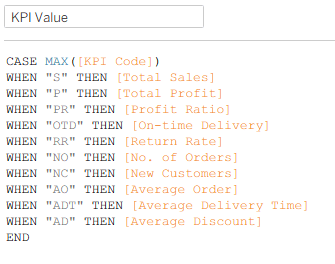
        The next step is to add a new calculated field. I’m going to call it “KPI Value”:

        The calculation takes each row in the KPI table, and links it to a different measure, or calculated field. All the calculations have to be aggregated, otherwise you will get the dreaded “Cannot mix aggregate and non-aggregate…” error, but you can use actual calculations as well as field names, such as:

        WHEN “S” THEN SUM([Sales])

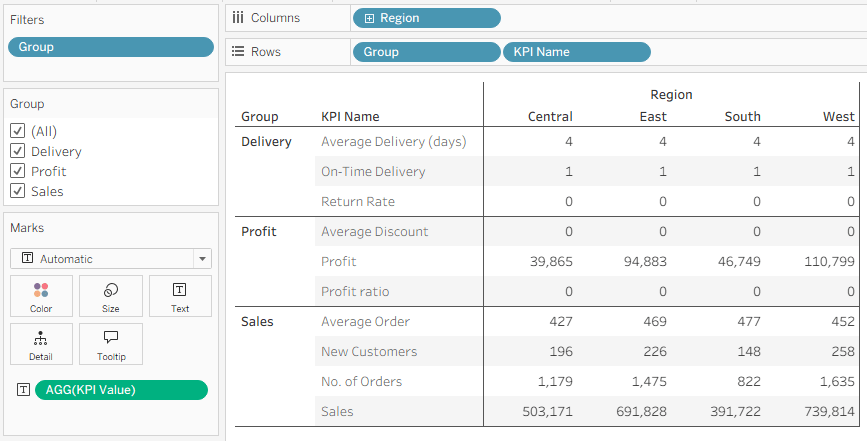
        Now I have a measure called “KPI Value”, controlled by a “KPI Name” dimension, which can be filtered, grouped, or otherwise manipulated just like a normal dimension (though totals across this dimension are probably meaningless). For example:

        OK, but this looks weird. The measures are on totally different scales, so percentages appear as 0 or 1. We need to format the values, and this is where the “Format” field in the table comes in handy. In the example I have three options – “N”, “D”, “%” – but you can use as many as you need. Two additional calculated fields give us a formatted text value for each measure, that can be dragged to Label or Tooltip as needed:

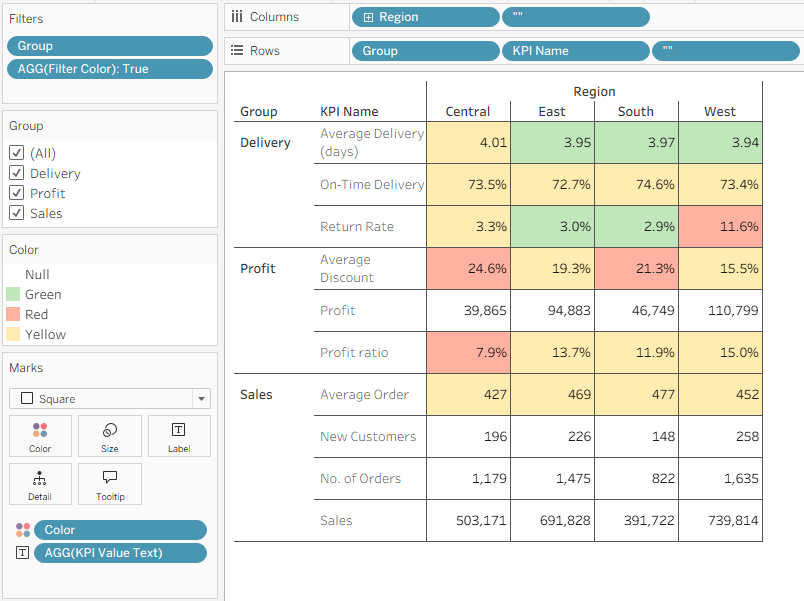
        And the end result is:

        Note the ability to use “Group” as a hierarchy or a filter.

        Great. This is very useful, but there’s another level that we can add here – setting threshold values for all the KPIs, within the KPI table. I am leveraging the existence of this table, and adding a few more fields:

        The “Color” field is just a text description of a color, or state (the contents could also be “Good” or “Bad”, for example), but the “Color from” and “Color to” fields define a range of values for the KPI, that we can then color by the “Color” field.

        (I know, too many meanings of the word “Color”. But it’s worth it…)

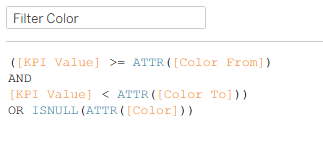
        To implement this in our worksheet, I added one new calculated field:

        This filters the rows for each KPI so that only one “Color” row remains, and also takes into account those with no threshold values and just one row. I can drag it to the Filters card, filter by True, and drag the Color field to Color:

        And that’s already a type of Balanced Scorecard, highlighting measures (KPIs) by their performance. Any changes to the thresholds can easily be made by updating the KPI table, and the purists will split it into two tables, KPIs and Thresholds, with a join between them using KPI Code.

        This is Tableau, of course, so it can get even more complicated – and powerful. My original customer had three tiers of “Accounts”, with different threshold levels for each, so I simply added another level into the KPI table, multiplying the number of rows by 3 again. But it worked.

        A word of warning: this is a great technique, but it’s not good for performance. The original use case had 300+ rows in the KPI table, and less than a million in the raw data, and performance dropped to 30+ seconds per view, but the analysis was so powerful that my customer was still happy with it. So use it with care, and don’t expect something that works instantaneously with Superstore data to be as fast with tens of millions of rows and 40-50 KPIs.

        Note: the technique has also been tested with Tableau’s new multi-fact relationship model, and it works. There are two important considerations:

        • Link the KPI table to one of the fact (base) tables, and not a dimension table.
        • Each KPI calculation should be based only upon measures from a single fact table, otherwise results can be unexpected. That’s because the relationship model won’t know how to join the two tables before performing the calculation.

        The workbook that I used is published on Tableau Public, and the KPI excel file is below:

      • Filtering Multiple Data Sources

        Filtering Multiple Data Sources

        This is a revised copy of my original post in the Tableau Community blogs from 2024.

        Back in the day (before 2020.2), you could add worksheets from different data sources to a dashboard, define a filter from one of them, “Apply to selected sheets”, and it would automatically filter the other sheets using blending.

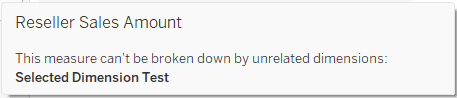
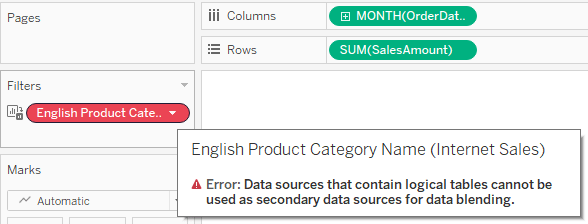
        Then came relationships, which enabled us to create more flexible and efficient data sources. However, the filtering option was suddenly lost, because the secondary data source in a blend cannot include a relationship. When you try to apply a filter from one worksheet to another, and both are based on relationships, the second is suddenly disabled (grayed out or empty), and when diving into it you see the dreaded message:

        So we started creating workarounds – and especially using parameters as filters, with all their disadvantages: no “All” option, no multi-select, no “relevant values”. And telling customers (or users) that on dashboards using multiple “advanced” data sources their filtering options were limited.

        And then, after almost 4 years of dithering around this, I had an epiphany. Looking around a bit (using mostly Google Search, of course) I couldn’t find anyone who had implemented this sort of solution, or at least written about it.

        So here are the sample workbook:

        and the explanation:

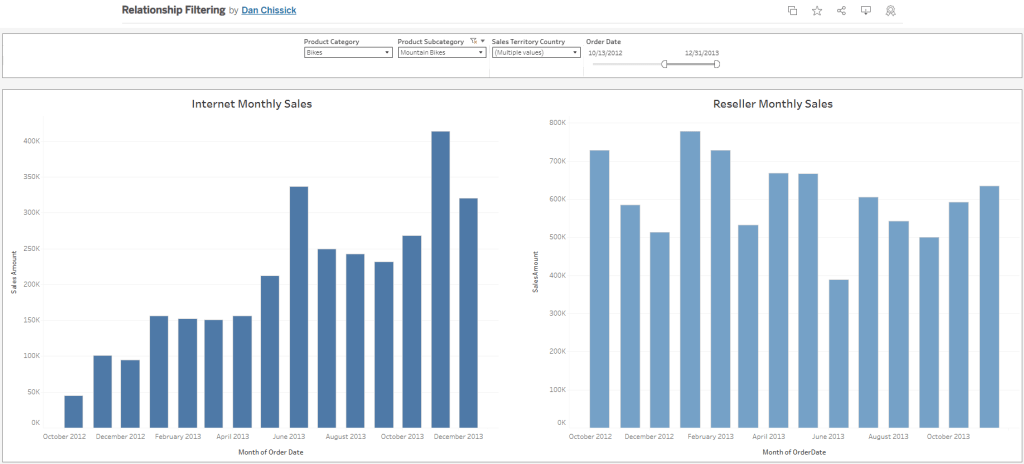
        The data is based on the Microsoft AdventureWorksDW database. There are two data sources with relationships to various dimensions: Internet Sales and Reseller Sales. Both have similar data and some common dimensions.

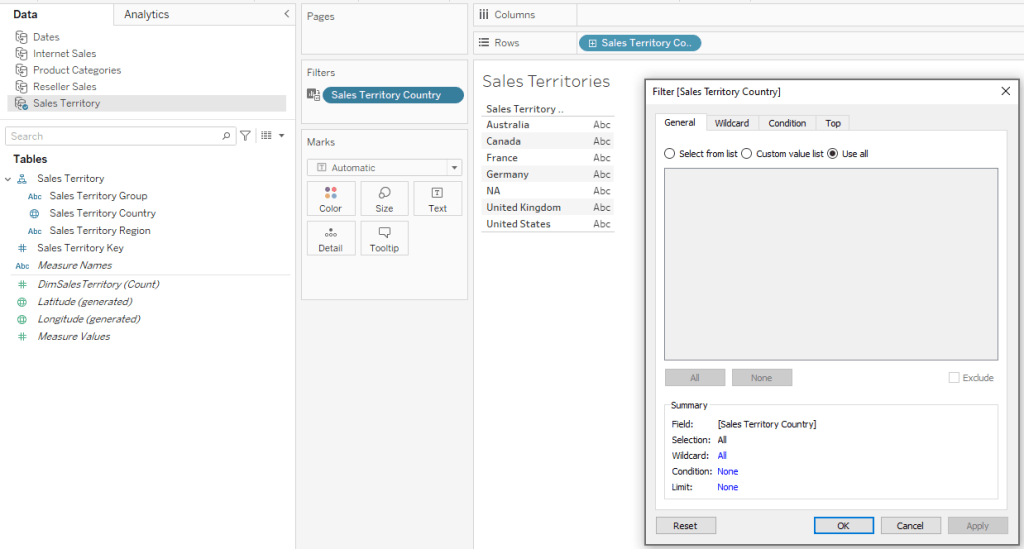
        Basically the idea is to create a supporting data source for each dimension used as a filter, with no relationships. Joins are possible, of course – if you want to create a hierarchy, for example.

        In this case we have three supporting data sources:

        ·        Sales Territory (including a hierarchy of Group, Country, Region)

        ·        Product Category (including Category and Sub-Category)

        ·        Dates – this actually contains all dates within the relevant data range, and is based on a separate view from the actual data. I named the date field “Order Date” because this is the field’s name in the main data sources.

        Now create a dashboard and add worksheets from the two main data sources. I’ve added two bar charts.

        For the Sales Territory Country filter (for example), create a worksheet with only Sales Territory Country on the rows. Add the same field as a filter as well (select “Use all” for now).

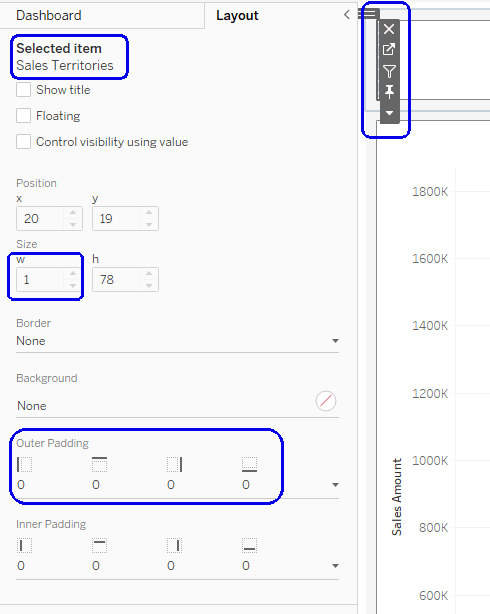
        Go to your dashboard, and drag the worksheet onto it. Then make it disappear: set “Outer padding” in the layout to zero, and the height and/or width in pixels to 1.

        In the worksheet menu select Filters –> Sales Territory Country, and the filter will appear. Place it wherever you want, Apply to Worksheets –> Selected Worksheets, and select the worksheets with the data.

        And there it is – the filter affects both bar charts, using the Sales Territory data source, which has no relationships, as the secondary data source for the filter.

        Using the Product Category data source and another hidden worksheet, I created a couple of additional filters for Category and Sub-Category.

        As for the dates, the process is the same, and I can use any type of date filter – relative, range of dates, year, etc. It’s important for the independent Dates data source to include all possible dates in the actual data sources, so the blending works properly.

        To summarize – the finished dashboard has charts from two different data sources with relationships and multiple logical tables, filtered by common dimensions with little effort. The supporting “dimension” data sources can be re-used, so this is a relatively simple workaround for organizations working with many complex data sources and seeking to combine them within multiple dashboards.