Category: Quick Tips

  • Tableau Cloud 💔Static Files

    A nice feature of Tableau (Server) is that you can create data sources with multiple connections, including to files – for example a few database tables, joined/related to a static Excel file (because there’s a small set of data that’s not in your DB), or maybe to a shapefile.
    Then you can publish the data source, check the “Include External Files” box, and when refreshing your extract (or connecting live), the file is simply there. Static.


    Database tables with a relationship to Excel

    The Publish Data Source dialog box

    But what happens when you publish the same data source to Tableau Cloud?

    It turns out that this doesn’t work. The documentation states very clearly that it should work:
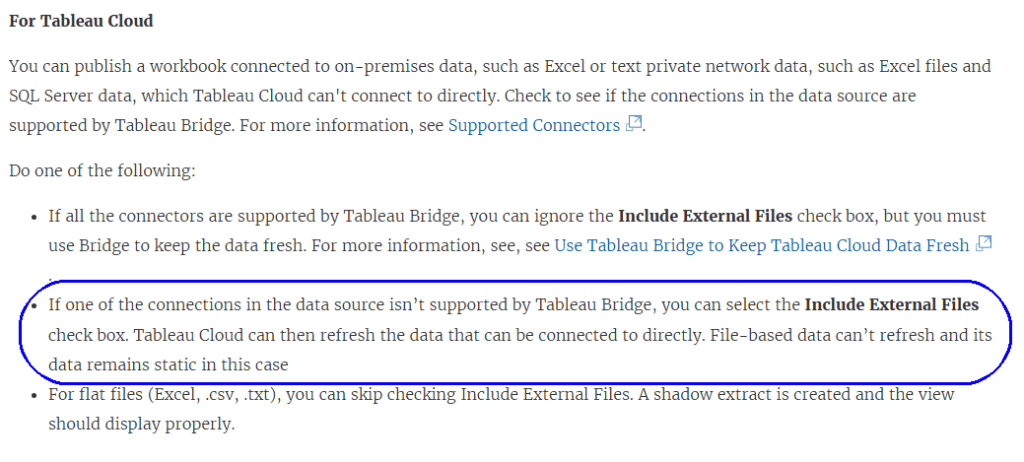
    But after testing thoroughly, and opening a case with Tableau Support, I can confirm that this causes an error on Tableau Cloud.
    If you publish a refreshable/live data source with a static file included, even after checking “Include External Files”, any attempt to connect or refresh extracts returns an error, as Tableau Cloud tries to access the file(s).
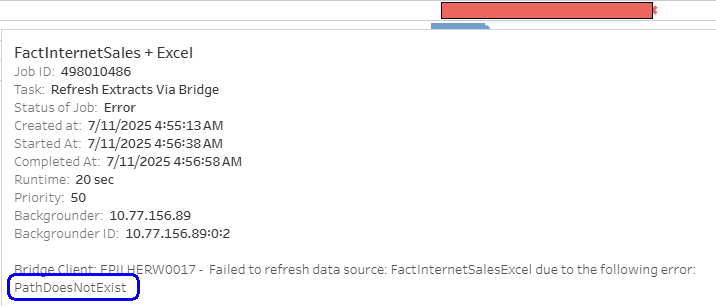
    This happens both with direct database connections and with Tableau Bridge. Now, obviously, from a technical point of view you can use a Bridge connection to connect to the file on a UNC path, but probably that’s exactly what the developer of the data source was trying to avoid.

    Why is this an issue?

    One of my customers is migrating from Tableau Server to Cloud, and has dozens of data sources that include static files. They discovered the problem only after trying to refresh the extracts on Cloud. All of them now have to be modified – mostly by loading the file into a database table.

    This issue is a major difference in functionality between Server and Cloud, but it is undocumented and doesn’t appear in any migration guides. So it’s important for the community (that’s you – my readers) to know about it, and take it into account for future migrations, at least until the documentation is corrected.
  • DZV is great, but…

    DZV is great, but…

    Dynamic Zone Visibility (or DZV) was introduced by Tableau back in 2022, and is a great feature. It enables you to display or hide any dashboard object, or container, based on the value of a parameter, or a calculation that uses a parameter.

    What most developers I’ve worked with don’t know, however, is that hiding a worksheet using DZV does not prevent Tableau from retrieving the data for the worksheet. So, for example, if you are using a parameter to switch between 5 different displays (so 4 are hidden), the data for all of them is being calculated every time you refresh the dashboard, or change a filter value, even if only one is visible. That’s a x5 performance hit!

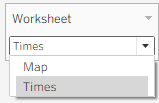
    In order to test this thoroughly, I created a workbook with two worksheets: “All Routes”, which is quite slow, and “Bus Calendar”. I also created a parameter with two values (“Times”, “Map”) for switching between them, and the necessary calculated fields:

    Parameter
    One of the boolean fields

    I then created three dashboards:
    1. A dashboard displaying both sheets, with no DZV.
    2. A dashboard switching between both the sheets, using only DZV.
    3. Like no. 2, but adding a context filter on each sheet, using the same boolean field as the DZV, so the data is filtered out when the sheet is hidden.

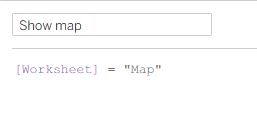
    Filtering on the “Show map” field
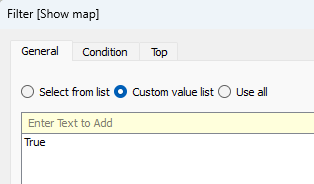
    Context filter

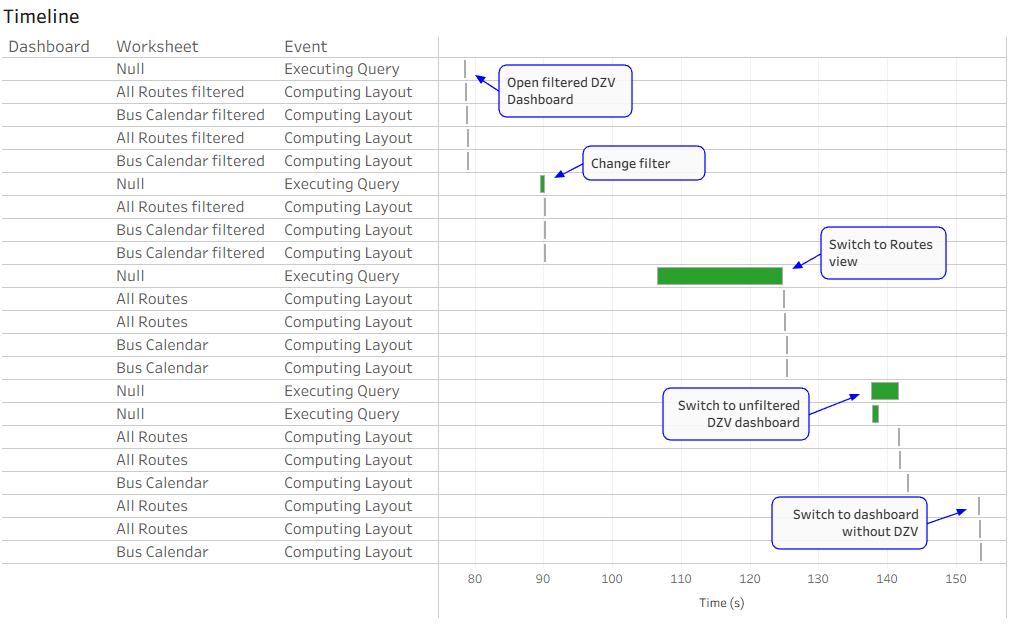
    I then used a Performance Recording to see what happens under the hood. Note that Tableau uses caching, so when a worksheet’s data has already been retrieved using a specific filter, it won’t execute the query again. The results are below:

    DZV Performance Recording

    So what happened?

    • I opened the filtered DZV dashboard first, with “Times” selected in my parameter. Only the “Bus Calendar” query was executed.
    • I changed a filter that affects both sheets. Again, only the “Bus Calendar” query was executed.
    • I switched my parameter value to “Routes”. You can see in the screenshot above that only the “All Routes” query (the long green bar) was executed.
    • Now I opened the unfiltered DZV dashboard, changed the filter, and it immediately executed the queries for both worksheets, even though only “All Routes” was visible.
    • Lastly, I opened the dashboard that displays no sheets. No queries were executed, because both sheets already had the data.

    Obviously this is just a quick scenario. I’ve checked this much more thoroughly on both Desktop and Server, and you can easily check for yourselves using Tableau’s Performance Recording tools (more about that in a future post).

    For now, I’m not telling you not to use DZV. It has great advantages over the old “hack” of filtering worksheets (which I used here), in that you can hide other objects as well, and you don’t need to hide the worksheet title in order to make it disappear. Just bear in mind that hidden worksheets are still calculated, and that affects performance, especially if you have a lot of data.

  • Find in Data Pane

    Tableau always release new versions with a list of new and exciting (or not so) features, such as this, but there are sometimes really helpful additions or modifications that are unlisted, and even undocumented.

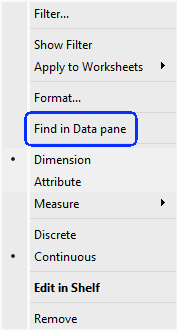
    I always start using a new version of Tableau Desktop almost immediately, because as a consultant I have to keep up to date. So when version 2025.2 came out I was working with it within a day, and suddenly saw a new menu entry:

    "Find in Data pane"

    My first reaction was “Is this what I think it is?”.
    My second was to click on it.

    It’s definitely what I thought. No more searching for a field from your worksheet in the Data pane, in order to check the formula. Click on “Find in Data pane” and it finds the field immediately.

    For me, as a consultant, this is a game-changer. I spend hours with my clients, when something isn’t working as they expect, checking their calculated fields, and we always start from the worksheet rows, columns, and marks. Now we can save time and jump straight to the field, without scrolling or typing in the search box.

    Unfortunately this is currently relevant only for Tableau Cloud users, because Server doesn’t have a 2025.2 version, but it’s a great new feature. And I haven’t found it in the documentation yet…

  • Click on “Use Extract”

    One of the infuriating behaviors I encountered early on with Tableau was when I was working with an extracted data source in Desktop. I would be creating worksheets, calculated fields, and dashboards, and then I needed to check something in the data source.

    So I went to the Data Source page, dug into the structure, found what I wanted – but I didn’t change anything. However, when I wanted to return to my worksheet, Tableau decided that something had changed, and started the dreaded extract refresh…

    What do you do in this situation? Wait 10 minutes for it to finish? Cancel and remain stuck in Live mode?

    There’s a solution:

    Cancel.

    If the worksheet starts processing in live mode, Cancel again.

    Now go to the data source’s right-click menu, and check the “Use Extract” option. Your extract still exists, so you are returned instantaneously to extract mode as if nothing has happened. Problem solved.

    I’ve seen this happen literally hundreds of times, especially while working with others, and most developers think they have no option except wait for the extract to finish. So I hope this small tip helps someone…