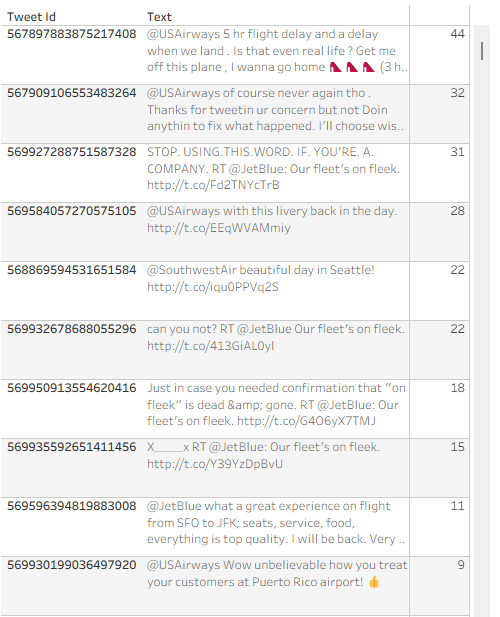
Recently someone noted that Tableau tables don’t do a great job displaying long text fields – the row height can be adjusted to accommodate any number of lines of text when it is wrapped, but it is fixed for the whole table, not dynamic per row. Look at the example below (just some old tweet dataset that was lying around), and you can see that all rows have exactly 3 lines, so in many cases there is blank space, or an overflow (two dots at the end):
Is there a solution? Built-in there isn’t, but a couple of calculations can certainly help and format our text table more efficiently. This is how it’s done.
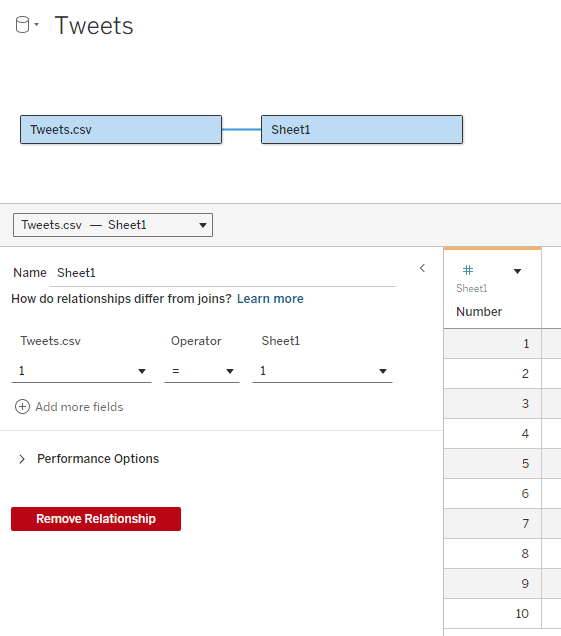
First, I define an integer parameter called “Text length” and set the value to 40. I’ll use it later. Now I need to add an “expander table” to my data source. This is a simple table (I usually use Excel) with a column of numbers, from 1 to as many as needed. In the example I don’t expect to display more than 10 lines of text, so I limit the table to 10, but it can be a lot more. The relationship between the table and my data table is set as a full cross-join: 1 = 1
What I’m going to do now is split the text field into separate lines, by finding the first space after every N characters (N being my parameter) and cutting the text at that point. For this I use 3 calculated fields:
Cutoff N (this marks the first space after N * Number characters (or the end of the text)
IF FIND([Text], ” “, [Number] * [Text length]) = 0 THEN LEN([Text])+1 ELSE FIND([Text], ” “, [Number] * [Text length]) END
Cutoff N-1 (this is the previous space)
FIND([Text], ” “, ([Number] – 1) * [Text length])
Text N (cut out the text from [Cutoff N-1] to [Cutoff N]
IF [Number] = 1 THEN LEFT([Text], [Cutoff N]) ELSE TRIM(MID([Text], [Cutoff N-1], [Cutoff N] – [Cutoff N-1])) END
Note that I’m using the [Number] field from my expander table to define the line number (N), and the number of characters in each line of text depends on the [Text length] parameter.
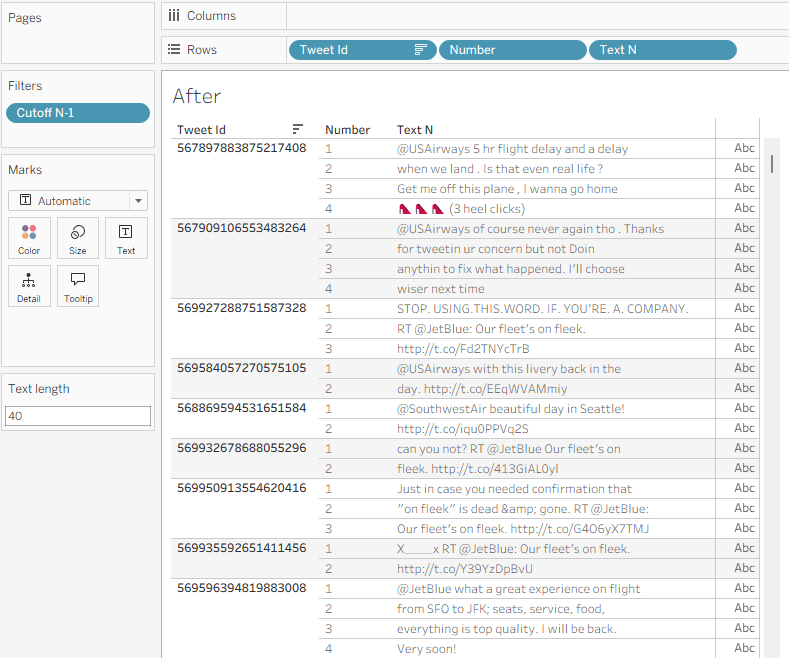
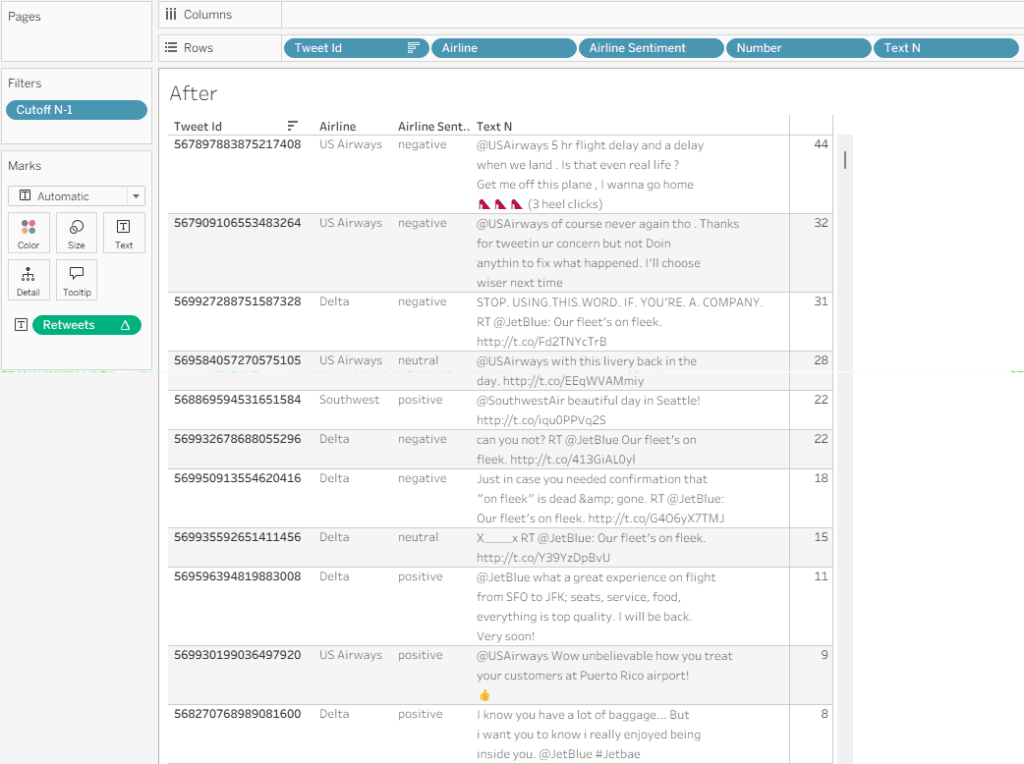
Place [Number] on rows, then [Text N], and I get my table with the text field split nicely into lines:
I can use the Text length parameter to play with the field width, and see what it looks like with different values.
A few additional formatting steps:
Uncheck “Show Header” on the Number field in Rows.
Format the Borders so the lines within the text disappear.
Fine-tune the row shading.
If there’s no field after Text N, switch the mark type to Polygon so the “abc” disappears.
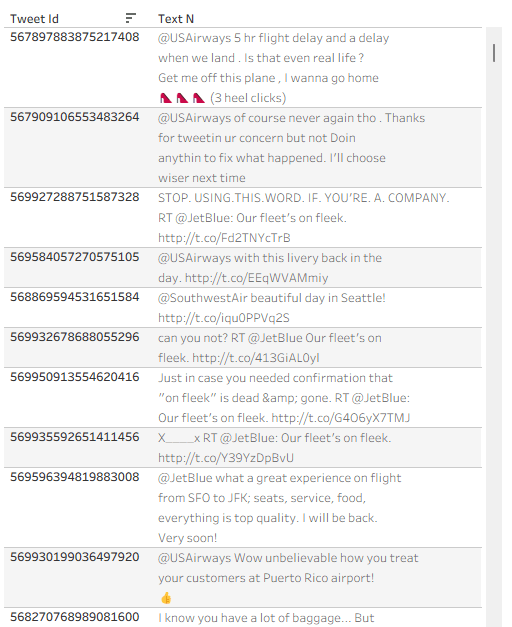
And I have a formatted text table:
Now let’s say that I need some data field to the right of my text – in this example I’ll use “Retweet count”. If I just add the field, it will display the same value for each line of text, so I need to use a table calculation:
Retweets
IF FIRST() = 0 THEN SUM([Retweet Count]) END
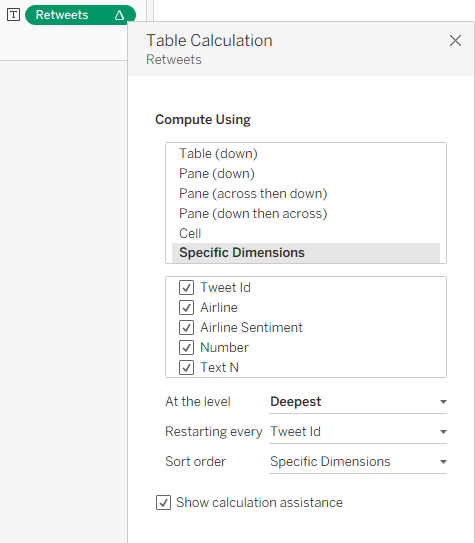
I can add this, and then Edit Table Calculation using the following settings:
This enables me to show the value only for one row, and my finished table, with the additional columns, looks like this:
Summary
The data in this sample dataset isn’t varied, with most tweets being around the same length, but you can see how a flexible number of text lines per data row can improve the look and feel of a Tableau table. So it’s not impossible – you need just a relatively simpke workaround. And that’s part of the power of Tableau: with a little imagination and some calculated fields, you can tweak your visualizations and solve many display problems without any coding.
As usual, this post started from a customer request. They had a nice table set up in Tableau, with Measure Names and Values (quite complicated ones), and they wanted to add a column with an indicator for each row – just a colored dot, but with 4 different colors.
At first I said it couldn’t be done without re-engineering the whole table, but then I thought about it and suggested a solution similar to the following example, which is already working nicely in production.
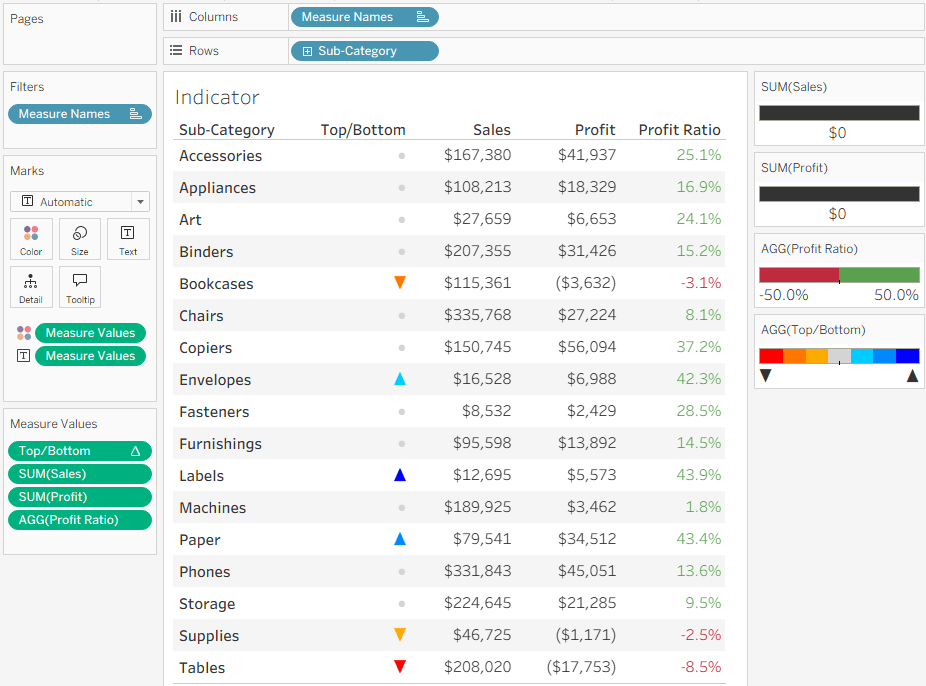
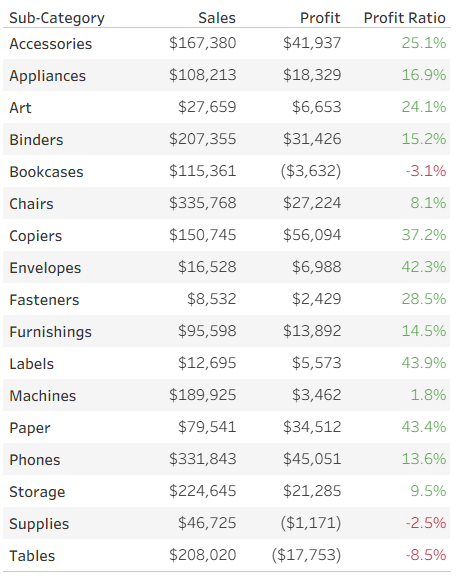
Let’s start with a simple table of measures, already colored using Separate Color Legends:
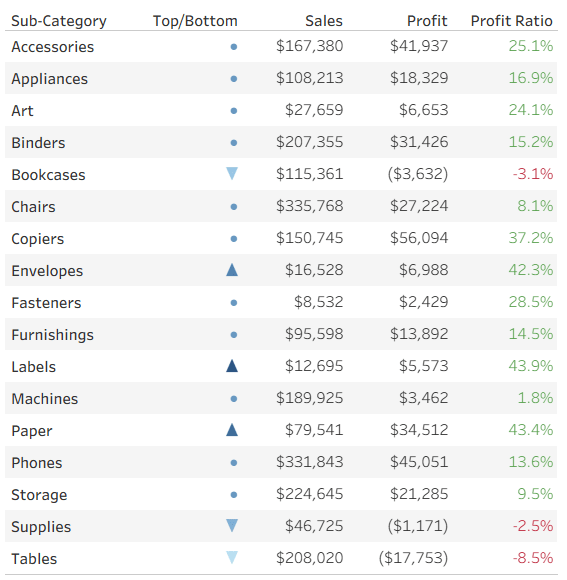
Now we want to add a colored indicator for some of the rows, based on a calculated field – I’ll take the ranking of Profit Ratio as an example. To stretch Tableau to the limits, my requirement is to display an upward pointing triangle for the top 3 rows (Sub-Categories) in Profit Ratio, a downward pointing triangle for the bottom 3, and a circle for the rest. In addition, the top 3 should be colored in shades of blue, the bottom in red, and the others in light gray. Impossible? No!
I start by defining my calculated field. What I need is a series of numbers, not the actual value (which is displayed separately in this case), and you’ll see later how these numbers support the visual element. I’m aiming for the numbers from 3 to -3:
IF RANK([Profit Ratio]) <= 3 THEN 4 – RANK([Profit Ratio]) ELSEIF RANK([Profit Ratio], “asc”) <= 3 THEN -4 + RANK([Profit Ratio], “asc”) ELSE 0 END
This gives me the values 3, 2, 1 for the top 3 rows, -3, -2, -1 for the bottom 3, and 0 for the rest.
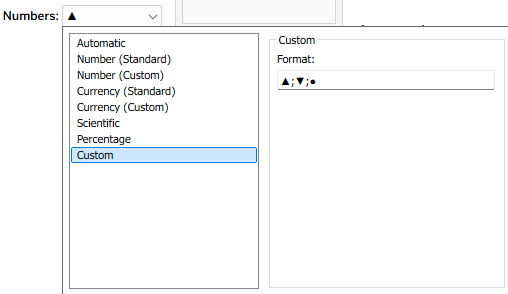
I can now leverage two of Tableau’s formatting features to create my indicators. First, the number format – I define a custom format: ▲;▼;●
What does this mean? Every number format is divided into three sections, separated by semicolons. The first is for positive numbers, the second for negative numbers, and the third for zeros. I’ve told it not to display the actual value, but a single character in each section (it could be any unicode text).
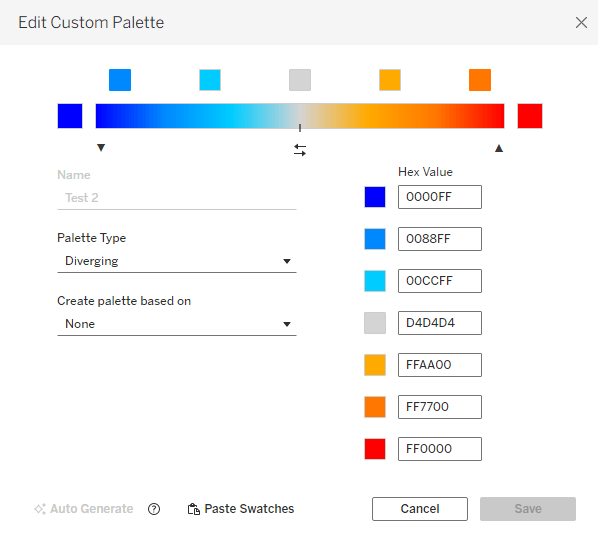
Then, in addition, I can use Tableau’s color options and define a custom diverging color palette, with as many colors as I want. This is much easier in versions from 2025.3 onwards, that have the custom palette editor within Tableau, but can also be done by modifying the preferences file :
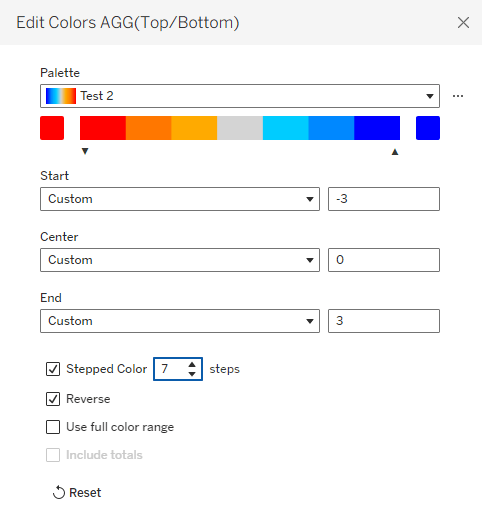
Note that it’s important to define the same number of colors as numbers that I’m using for the indicators, and for the numbers to be evenly distributed. That enables me to fix the palette scale from the lowest to the highest number, and when I define Stepped Color with the corresponding number of steps, each number in my measure gets its own color:
That’s it. I have my indicators in a simple Measure Names/Values table, without changing the whole structure of the worksheet.
Remember that this technique has constraints: not more than 3 special characters or texts, and theoretically you can define any number of colors, but I haven’t checked Tableau’s limit (maybe 20?). But the bottom line is that it allows you to add colored shapes as indicators to a table of measures, as an additional column, and that can be very useful.
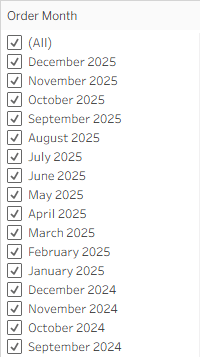
Recently I was asked, not for the first time, if Tableau could sort dates in a filter in descending order. Well – it can, sort of. But you need to know how to manipulate the fields a bit.
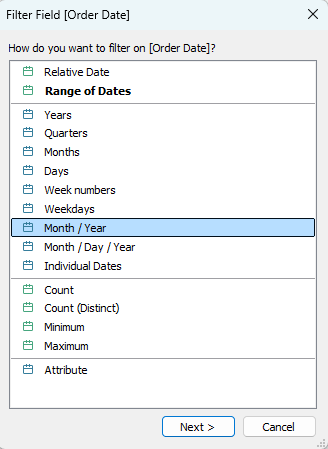
Let’s take a simple case: I want to filter by month and year, but to see the latest month at the top of the list. So I drag my Order Date field to the Filters card, and select the Month / Year option.
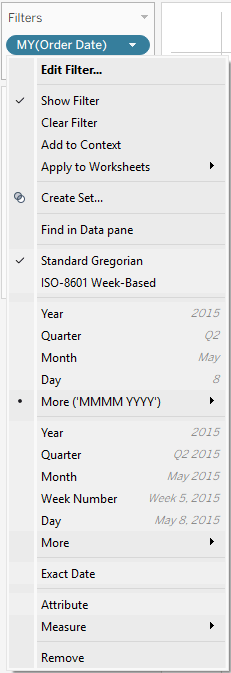
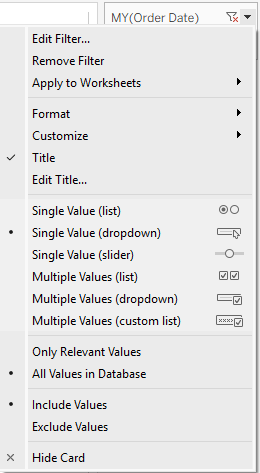
Now I can look at the menus in both the Filter card and the worksheet itself (after showing the filter), and there is no “Sort” option in either.
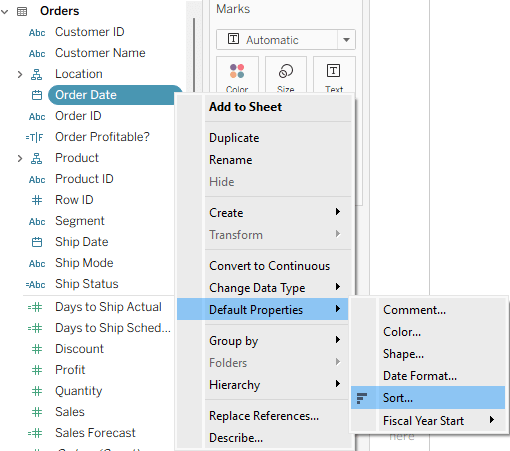
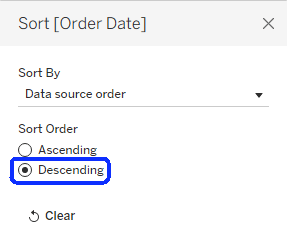
So I’ll try to set the default sorting of the Order Date field to descending order, using the menu: Default Properties → Sort, and then checking the Descending option.
Then I drag the field to Filters again, and… it stays in ascending order.
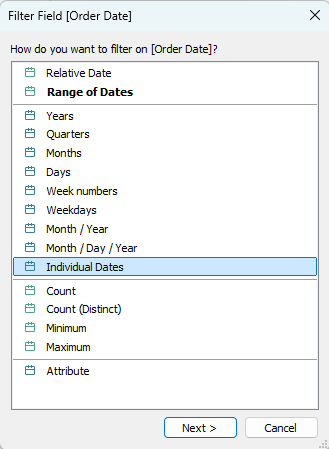
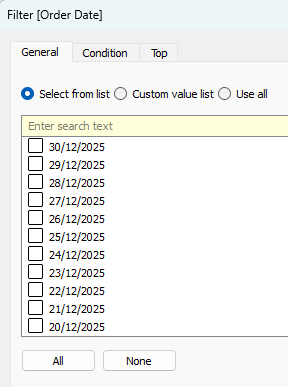
But what if I choose the Individual Dates option? Suddenly, the dates appear in descending order, but I have every date (day) there. It doesn’t work if I select any other date level.
So what’s happening here? Dates are a special type of field, and Tableau automatically aggregates them unless told otherwise – to years, months, or some other level. And it always sorts the aggregated dates in ascending order. The Individual Dates option is the only one that is not aggregated, so it retains the default sorting.
How can we work around this problem? Let’s say that we need a filter displaying months, and sorted in descending order. We first need to create a field that has individual dates at the month level. There are two ways of doing this:
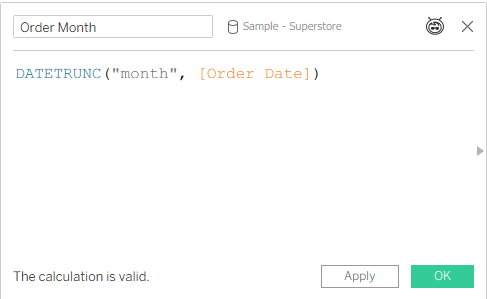
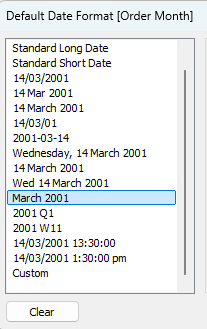
Create a calculated field, using the DATETRUNC function (more about that in a previous post), and also set its default format to something appropriate.
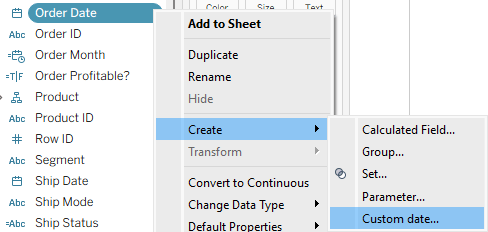
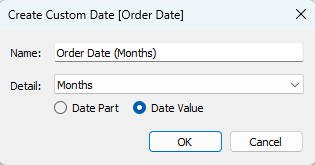
Create a Custom date field – one of the lesser known functions in Tableau. Select the “Months” option and “Date Value“.
Now we can set the default sorting for the field, drag it to the filters, select the Individual Dates option, and the months will appear in descending order. Mission accomplished!
Summary
We now know that there are two conditions that have to be met in order to see dates in descending order in a date filter:
The default sorting of the date field is set to “Descending”.
The filter is not aggregated, but showing individual dates.
We can manipulate the dates as necessary, but in the end those two conditions have to be met. All the rest is the usual Tableau trickery 😊
The results are in for this year’s Iron Viz qualifiers, so I thought I could share some thoughts about the judging process, and of course about my involvement in it.
The judges for the Iron Viz qualifiers are about 30 volunteers from the current year’s cohort of Ambassadors and Visionaries, obviously not including those who are actually participating. This year I volunteered for the second time (previous was in 2024) – I can’t take part in any case because of the legal constraints that limit Iron Viz entrants to residents of only 32 countries in the world (more about that here), so judging is a good way to be involved.
The vizzes are screened by the Tableau team to make sure that they comply to the minimal standards, such as the chosen theme (this year it was “Food and Drink”), and then each entry is assigned to 3 random judges. Many of the entrants publicize their work immediately after submitting, but we are asked to try and ignore the social media noise before judging, for obvious reasons. I was assigned 11 vizzes, but I had to decline one of them, as it was created by a colleague from my company and I had even given feedback on the content, so it was re-assigned to someone else.
We had more than a month from receiving the anonymized vizzes until our deadline, so there was ample time. I invested at least half an hour on each – first investigating it as a viewer, then opening the workbook and seeing how it was created, including data sources, calculations, worksheet structure, and actions, and then assigning the scores and adding brief comments. When I had finished with all of them, before submitting all the scores into an online form, I also looked at the final ranking and evaluated if it reflected my general impression of the vizzes – because sometimes you can get immersed in the small details and scores, without seeing the big picture: which viz is the best?
I was impressed by the amount and variety of data collected by most of the participants. Most of the vizzes were based on multiple datasets with a wealth of data about their subject, and I’m sure a lot of effort went into collecting this data, before even starting on the design.
I have to note that most of the subjects did not interest me at all – I’m the total opposite of someone you would call a “foodie”, and I don’t drink almost anything except water. Some of the data, and even the food and drink names, could have been pure fiction, and I wouldn’t have known the difference.
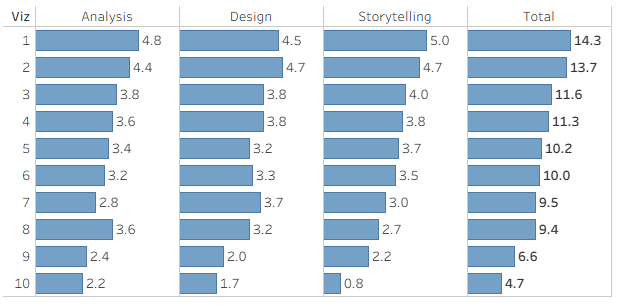
I am not going to divulge any recognizable information about the vizzes that I judged, of course, only my general impressions. Overall, of the 10 vizzes, I would have said that one was of beginner level, 7 were good to very good, and two were outstanding.
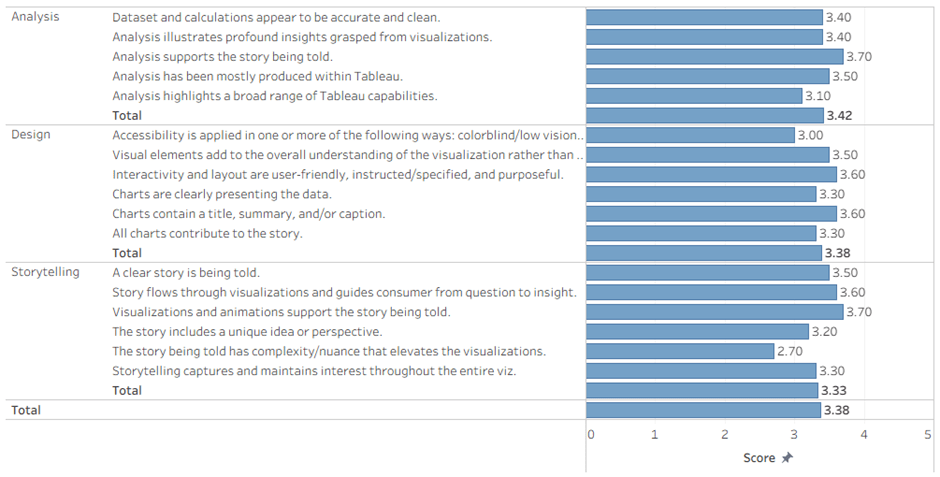
We judge all the vizzes by awarding scores from 0 to 5 on the well-publicized criteria: Analysis, Design, and Storytelling. This is what the scores that I awarded looked like:
Not much to be learned from this: most vizzes correlated well with their story, only the good ones had some complexity/nuance, and accessibility is not on everyone’s mind.
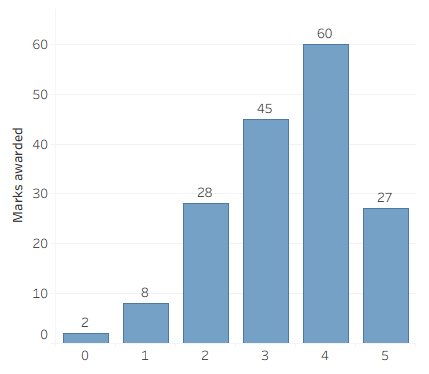
Another way of looking at it:
And the final results (anonymized Viz number), out of a maximum of 15 points:
My thoughts about some of the judging criteria:
Analysis
Viz topic aligns with the contest theme.
This one is obvious, and you don’t get a score for it – just True or you’re out.
Dataset and calculations appear to be accurate and clean.
This is where I check the data model: are there lots of data sources with disorganized names, or is there a nicely structured data model? And are the calculated fields well named and structured?
Errors cost points here – if an action or calculation performs incorrectly.
Analysis illustrates profound insights grasped from visualizations.
Analysis supports the story being told.
Analysis has been mostly produced within Tableau.
I understand this as meaning that if you’re calculating aggregates in SQL, or bringing in coordinates for a Sankey chart from Excel, you’re not producing analysis in Tableau.
Analysis highlights a broad range of Tableau capabilities.
Here is where I gave more points for using Tableau’s visual features: interesting chart types, dashboard actions, show/hide buttons, DZV, and even recursive parameter actions (my favorite, of course).
Design
Accessibility is applied in one or more of the following ways: colorblind/low vision (contrast) friendly palette, limited use of images to convey text, font size 12pt or larger.
I deducted points mainly for tiny fonts (there were lots of those), and a little for color palettes – it’s easy for me to judge, because I am slightly color blind.
Visual elements add to the overall understanding of the visualization rather than distract.
Don’t use charts if they don’t convey any information.
Interactivity and layout are user-friendly, instructed/specified, and purposeful.
Charts are clearly presenting the data.
If I need to investigate a chart for more than a few seconds in order to understand it, you lose points.
Charts contain a title, summary, and/or caption.
All charts contribute to the story.
Storytelling
A clear story is being told.
Don’t just display data – you need to tell a story. Actually I’m not very good at this, but I can recognize a good story when I see one.
Story flows through visualizations and guides consumer from question to insight.
Visualizations and animations support the story being told.
The story includes a unique idea or perspective.
The story being told has complexity/nuance that elevates the visualizations.
I looked for something special in the story: is it a bare analysis of the data, or are you investigating (or making me investigate) and discovering something?
Storytelling captures and maintains interest throughout the entire viz.
This is the easiest: was I captivated from the moment I first opened the viz, or did I lose interest at some point? The first impression was most important here.
So what about the results?
The viz that I ranked 3rd was in the top ten.
The viz that I ranked 2nd was in the top three, and qualified its creator to battle on stage in Iron Viz 2026.
And the viz that I ranked 1st …. nothing. Obviously two other judges didn’t like it as much as I did, or maybe Tableau have other considerations that also affect the final rankings.
Summary
Judging Iron Viz is quite a bit of work, but it’s one way for us Ambassadors to give back to the community. It definitely improves your critical thinking, challenges you to give constructive feedback, and of course it’s fun. Even the discussion within the closed forums among the judges is interesting. I’ll definitely do it again, if I have the opportunity, and huge thanks to Katy Clarke from Tableau who led the process and coordinated everything.
My session at DataFam Europe included a section about some limitations of Tableau’s multi-fact model, especially regarding stuff you can do in an “old” model but not with multiple fact (base) tables.
A recent bout of troubleshooting with a customer unearthed some new revelations, and a partial solution, for the “Dimension switching” problem that I had demonstrated.
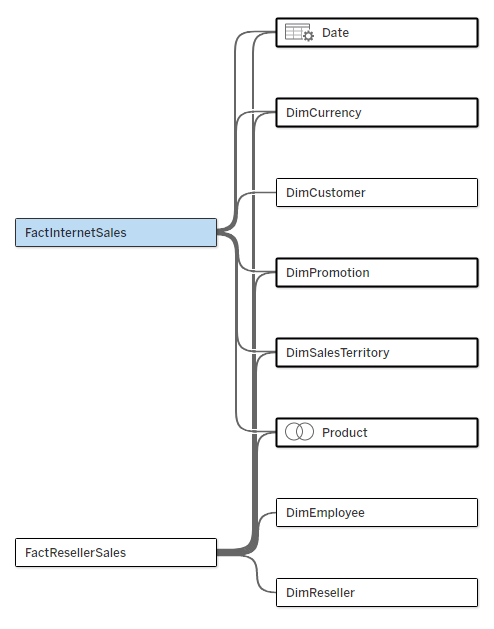
Let’s start with the problem. I have a multi-fact data source, as below. The two fact tables have five common dimensions (Date, Currency, Promotion, Sales Territory, and Product), Customer is related only to Internet Sales, and Employee and Reseller only to Reseller Sales.
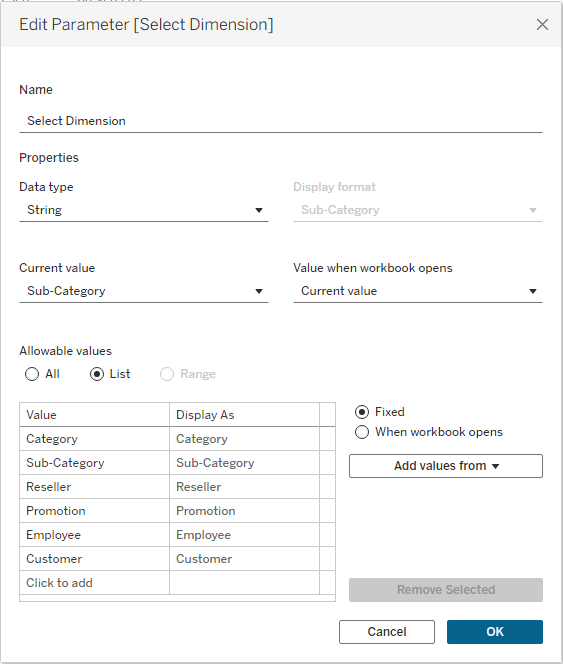
I‘ll start by creating a parameter that will enable me to switch dimensions in my worksheet:
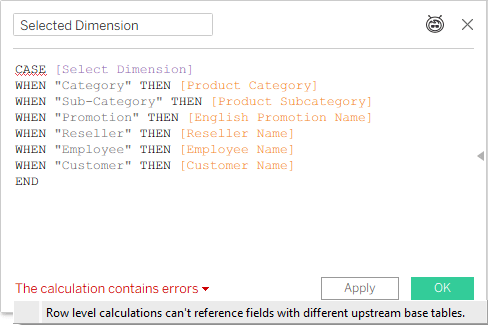
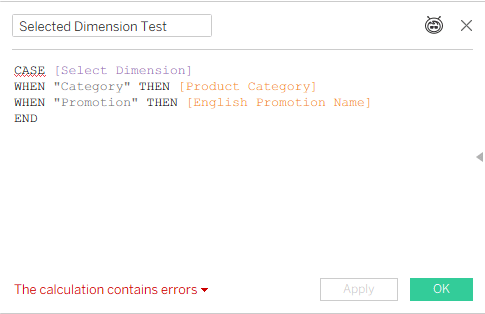
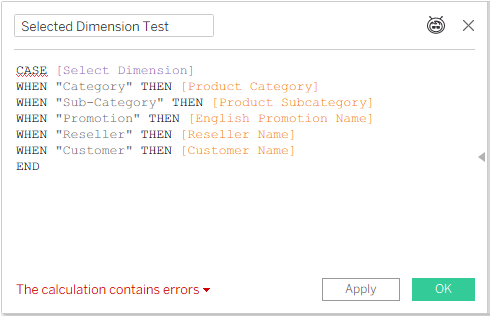
Now I create a calculated field based on this parameter, which can be placed in my chart or table, and I get an error:
Not good. In an old model, with just one base table, you can switch any field using this technique. Now, even if I’m only intending to use this “Selected Dimension” field with a measure from one base table (and I haven’t placed it in the worksheet yet), Tableau is already giving me an error.
This is where the customer’s story comes in. One of the developers tried this, and received an error as expected, but another developer, working with a different data source (also multi-fact), managed to create a similar calculated field and use it in a worksheet. So we started investigating, and after some trial and error we now understand when the technique works, and, more importantly, why.
I already know (from a conversation with Thomas Nhan, the Product Manager) that Tableau calculations in multi-fact data sources start from the base table. We’ll keep this in mind during the following examples.
Step 1
We start by referencing only a couple of shared dimensions from different tables (note that Category and Sub-Category are from the same table):
That’s an error, because Tableau can’t decide from which base table to start calculating.
Step 2
We add a dimension that’s related only to one base table:
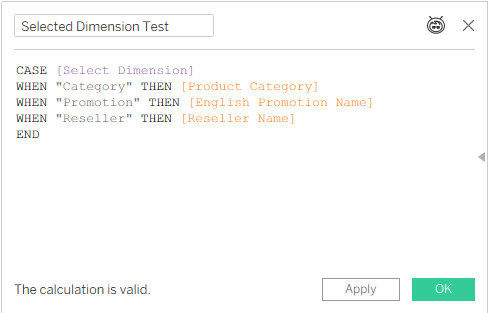
No error, because Tableau can decide, based on the [Reseller Name] field, that it has to use the FactResellerSales base table.
That’s the key: give Tableau a clue regarding which base table to use, and it will use it. Let’s try something else:
Step 3
That’s not working, because [Reseller Name] and [Customer Name] are related to different base tables. And it reminds us that dimension switching will only work with measures from a single base table, which we’ll see in the final result.
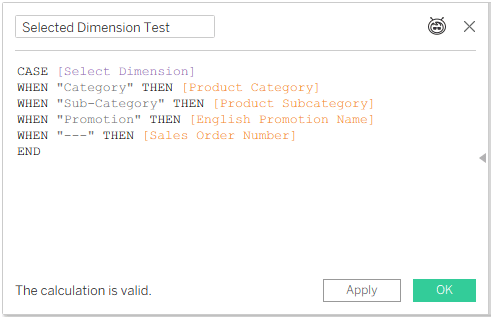
But even if all the dimensions you need are related to multiple base tables – add a dummy field from the table that you’re referring to, just as a pointer:
Step 4
This is OK. Category, Sub-Category, and Promotion are all related to both Internet Sales and Reseller Sales, but Sales Order Number, which will never be used because “—” is not a value in the parameter list, is in the Internet Sales fact table, so it is telling Tableau to start calculating from that base table.
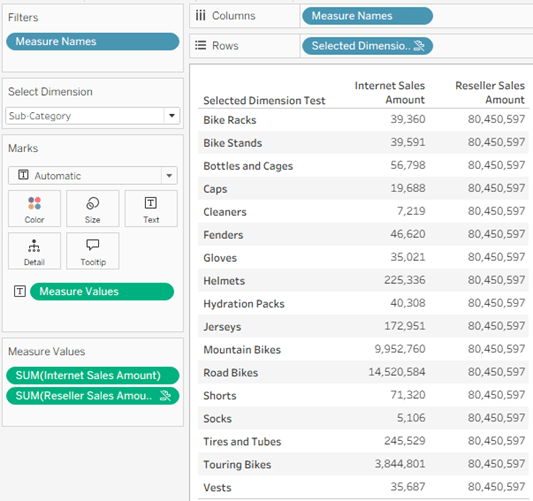
And this is where you have to look out for the actual results. By pointing Tableau at a specific base table, we are limiting the use of the dimension to that table only – even though the selected dimensions are related to two or more tables:
In the screenshot I have selected the Sub-Category dimension, but in the data pane it is applying to Internet Sales Amount only, even though it is related to Reseller Sales as well – because I “pointed” Tableau at Internet Sales with my dummy row in the calculated field. Note that Reseller Sales Amount even has the icon indicating a broken link, and hovering over it displays a message:
Conclusion
Dimension switching in a multi-fact model works, just as it does in the old relationship model with one base table, as long as Tableau is told explicitly which base table to use. However, there is currently no improvement in the capabilities, so you can’t switch dimensions in a single worksheet and display measures from multiple fact tables. Maybe that will come in a future iteration. And now you know how to “force” Tableau to choose a base table for the dimensions when necessary.
Recently, not for the first time, I was contacted by a Tableau customer: “We have a published data source, but after we refreshed the extract, the data in the dashbords isn’t updating!”. Why? Caching? A wrong connection? No – they had extracted the extract. As I’ve seen this mistake quite often, I’ll elaborate a bit.
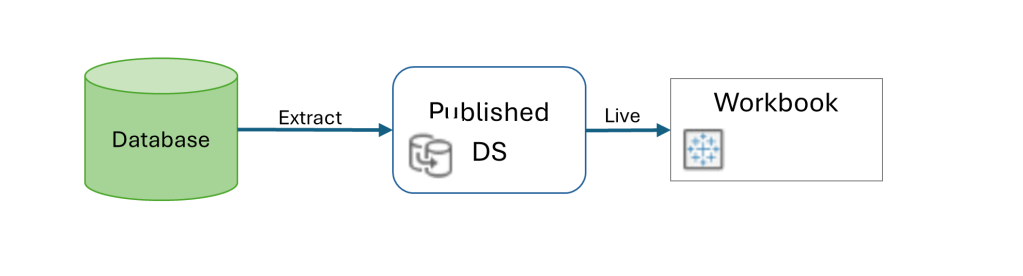
When you’re using a published data source (on Tableau Server or Cloud), the mode – live or extract – is defined in the data source. Afterwards, when connecting to the DS from a workbook, the connection has to be live, because you’re querying the DS directly in both cases. If it’s live, the queries to the database are sent through the DS definition, and if it’s an extract the data is queried from the extract on the server.
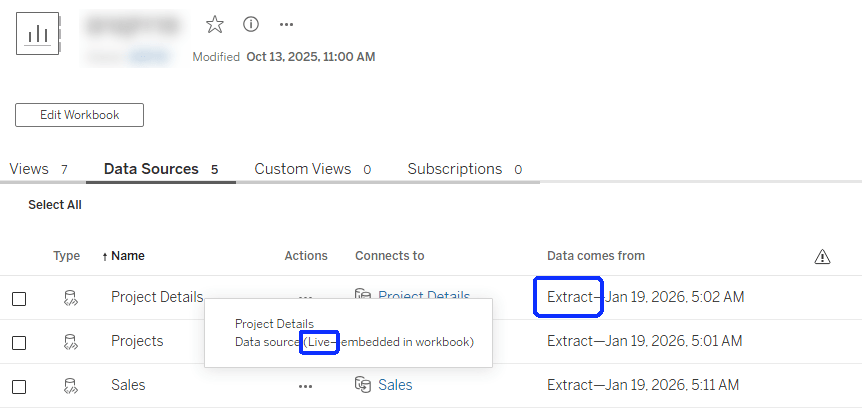
The mistake is in thinking that because the data is extracted, the DS has to be defined as an extract within the workbook as well. That will actually create another extract, at the workbook level, that simply pulls all the data from the published DS and saves it within the workbook. And then, if you refresh the original DS data, the workbook is still using its own extract (which hasn’t been refreshed), and the dashboard data isn’t updated.
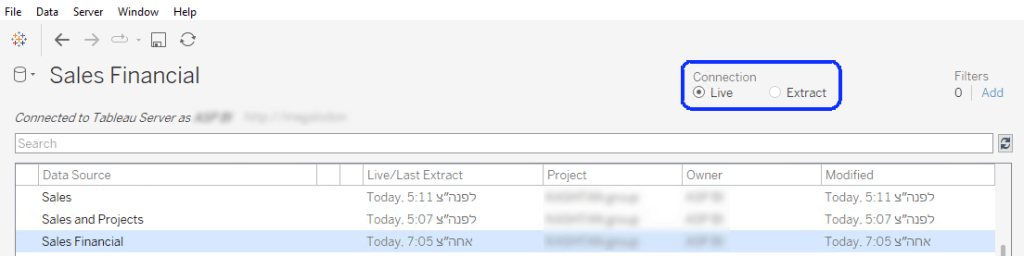
So this is the correct configuration:
In Tableau Desktop:
And on the server it should look like this:
And next time you encounter a workbook that’s “stuck” with outdated data, just make sure that you haven’t extracted the extract by mistake!
Note – all the links to session recordings go to Saleforce+, you need to register (for free) in order to watch them.
Preparations
I was a speaker at DataFam Europe 2025, which was held in London on 2nd-3rd December, so from my point of view the event started a long time in advance.
The news about DataFam Europe was only released in September, and almost immediately the applications to speak were opened, on a very short timeline – from 16th to 29th September. I’m sure it’s not a coincidence that Agentforce World Tour London was held on December 4th, and that probably forced the schedule. Having spoken in 2024 I was well acquainted with the process, and to hedge my bets I sent in three different applications, all of them new. This involves filling in a rather long form, with the important parts being the title, abstract, and “Why should this session be presented?”. I knew exactly what subjects I wanted, but I used some GenAI to generate a list of catchy titles for each based on the abstract, and then chose and modified the best one. I then used it to refine the abstract as well.
My application was approved very quickly (I was informed on October 8th), so I had almost two months to prepare the presentation. Tableau always assign you a “Content Owner” who makes sure you’re on track, but my previous experience had been that they fully trusted us, the community speakers, regarding the technical content, and didn’t ask to review it at all – which had surprised me the first time. This year I was contacted by a couple of Solution Engineers from Tableau a couple of weeks before the event, and we set up an hour to go over my presentation. Their feedback was really helpful, and I made a few changes, even though it was on a tight schedule. I don’t know if this was implemented for every community speaker, but it’s exactly what I would have expected, so it was very welcome.
The Conference
The action started with a meetup (nominally “Data + Women”, but open to anyone) at the Information Lab offices on Monday evening. This was mainly a gathering of data people chatting and playing games, where I caught up with quite a few online friends, and made some new ones as well. Notably, all the Tableau senior management who were in town also made an appearance.
The Conference entrance
Tuesday was conference day, and everyone appeared at Tobacco Docks – which is a relatively large venue, but a bit chilly (we were warned in advance). On the second day I brought the Tableau scarf that we received in our welcome bag last year (and it helped), but there wasn’t any similar swag this time. There was enough space so it didn’t become too crowded, but if you were looking for someone you could find them quite easily.
I was the only attendee from Israel except for the Salesforce employees, but I connected with them at their presentations and we’re already continuing the conversations back at home. Apart from that I met many friends who I’ve encountered as an Ambassador over the past three years, some of them at my lowly level and others very famous in Tableau circles (various Andy’s, etc.), and the nice thing is that everyone in the community is treated as an equal, as has been noted many times before.
Unlike last year, there was a pop-up shop with some nice branded stuff, at semi-reasonable prices, and I indulged myself. There were the usual partner booths, snacks throughout the day, and in general a very welcoming and friendly atmosphere.
My loot
After the sessions (more about that later) we had the evening reception, which was basically just a lot of people hanging around and chatting. No problem with that, of course, but at some point I just quit for a quiet fish & chips and back to the “hotel” at my sisiter-in-law’s house. Just a note for Tableau community managers – the huge Jenga game is a safety concern, you need to clear a 2.5m radius around it from seating options, because one day someone will get hurt!
Wednesday was a shorter day, so attendees could travel home in the evening. I was staying anyway, so I was present when they packed up the shop and started giving away the remaining stock for free – which, IMHO, is an insult to those who bought the same items earlier at full price. That doesn’t mean that I didn’t take anything…
The Keynotes
There were three keynote sessions, with room for everyone (500 people?) to attend. First was the Opening Keynote, with the usual presentation by Tableau management. As usual for these days, the main presentation was mostly about AI and Agents. Then there was a great talk by Matthew Miller about some real Tableau work, on the humidity level in the soil for his trees (!), and a customer / community panel who said all the scripted things that were expected, but didn’t enlighten anyone in the community.
I’ve read a lot of criticism (mostly on LinkedIn) about the direction, and I agree. The keynote seemed to be aimed at corporate executives who are thinking about purchasing Tableau (or upgrading to the AI capabilities), while most of the attendees seemed to be community members. Maybe the mix is different at TC, where there are thousands of attendees, but here it was the wrong audience.
One phrase that I liked, also by Matthew Miller: “Accurate, actionable, analytical answers, for anyone, anywhere, at any time” (I hope I got it correct).
Then there was DataFam Slam – basically an entertainment show pitting five Tableau employees against five community (DataFam) members with short Tableau tips, and the audience voting for each tip. For me it was mostly fun, but I’m sure some of the tips were new for many of the audience, and I’ve written in my previous blog post about Andy Cotgreave’s winning tip for the DataFam (lucky that he switched sides earlier this year).
DataFam won, of course 😊
On day two we had True to the Core (not recorded?), with Tableau’s senior management fielding questions from the audience. Last year I was the first to ask a question, but this time I just listened. Some of the questions were really insightful, and I felt that the answers were sincere – especially when the question was “What question do you not want to be asked?”!
I’m not good at remembering this stuff (questions and answers), but I think Tableau (Salesforce) are trying to balance between maintaining and growing their core business – Tableau Core, which includes the DataFam community – while also catering for the Salesforce imperative, which is to increase adoption of Tableau (Next) within the 70%+ of Salesforce customers who don’t have Tableau, and can contribute a lot of revenue. If we keep that in mind, we’ll hopefully be able to thrive within both worlds.
My Session
I presented my session (“Tableau Multi-Fact Models: Insights, Issues, and Fixes”) on Tuesday afternoon, to a relatively full hall. The onsite technical team were very professional, and there were no glitches. Because it was a “Silent disco” format, where the audience had headphones for the audio, there was no real option for any interaction, which was perfect: I knew from the rehearsals that I was going to be just over the allotted 30 minutes, and I ran through my content very fast.
On stage
My aim was to present an overview of the multi-fact data model, that was released in Tableau 2024.2 and is now starting to be more widely used. I reviewed the history of the Tableau data source models, showed how the new features work, gave some tips on implementation (Insights), and ran through some residual bugs (Issues and Fixes) that will hopefully be fixed in the near future.
Feedback was good, both from attendees that I don’t know personally and from fellow ambassadors (and a Visionary or two). I’m glad that I succeeded in enlightening some people, and I hope this will drive adoption of this model – and maybe push Tableau to invest a bit more in improving it.
Most of the time at the conference was spent attending the “breakout sessions”, 30 or 45 minutes each, with a choice of 3-4 different sessions in each time slot (easy compared to Tableau Conference, where you may have to choose between 20 at the same time). There were longer hands-on training sessions as well, but I chose to skip them, so as not to take a spot from someone less experienced, who could benefit more. They are usually really fun, but less intensive, and I know most of the stuff.
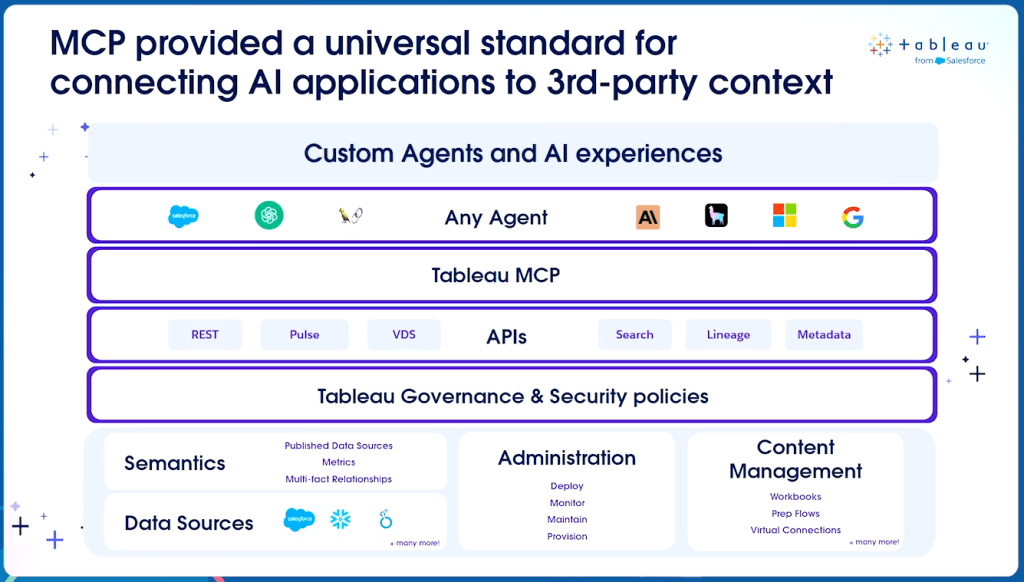
On the first day, not by design, all the sessions I attended were focused more on Tableau Next and AI, and mostly presented by Tableau employees. At some point it became boring – and they even used the same demos, so I was seeing the exact same functionality twice. Fortunately, much of the content was relevant for me, because I have to understand the whole Tableau ecosystem in order to educate our customers and point them in the right direction. The progress being made with MCP is especially interesting, because it could enable integration between Generative AI and Tableau, without investing in Tableau Next or paying a steep premium for Tableau+ licensing. At the end of the day I decided that tomorrow I would attend only Tableau Core sessions.
One of the MCP slides
So on the second day I did a round of “real” Tableau sessions. The highlights:
Tremendous Tableau Tips by Heidi Kalbe, Nhung Le and Tore Levinsen. Just a selection of tips, some well known, some less, but all interesting.
The Secret Life of Tables by Agata Mezynska. A great session on how to make tables more attractive, and insightful, for the users.
Agata on Stage
Beyond the Boundaries of Tableau by Tristan Guillevin. Not content with his “simple” viz extensions, Tristan is planning new and exciting implementations on Tableau APIs not yet released.
Co-Designing with AI by Pablo Gomez. Very relevant for old-school Tableau developers who want to use AI as a design assistant, not directly within Tableau.
Of course I couldn’t attend every session that I wanted, so I prioritized the more advanced stuff over the fun, and I’m looking through some other sessions on Salesforce+.
Summary
Was the trip worth it? Definitely – but I was there on the cheap compared to most others: Speakers don’t pay for registration, I wasn’t paying for a hotel, and my employer payed for the flight.
But ignoring the cost (or lack thereof), it was a good conference. Great networking, enough sessions for both the desktop and the AI crowds, and a constant feeling of community. I’ve heard from veteran conferencers that the community and content were better in the previous decade, but I accept that times are changing, and there’s enough to go around for everyone. I’ll make my bid for TC 2026 (much more expensive), and maybe I’ll be there. If not, we’ve been promised that there will be a DataFam Europe this year (2026) as well.
The most memorable Tableau trick that I encountered at DataFam Europe this year was something that I already knew of (vaguely), but seeing it twice brought it to my attention and now it won’t be pushed to the back of my trick cupboard again.
This was presented both by Andy Cotgreave in DataFam Slam (minute 36:00), and by Nhung Le in Tremendous Tableau Tips (minute 20:00), with different context (you need to register for Salesforce+ to see the videos). I’ll discuss just the technique, and what it can be used for.
So what are text bars? You can use a text field in Tableau to create a horizontal bar, and also manipulate its length using the data. This is possible due to the existence of the Unicode characters “█” (U+2588: Full Block) and “▒” (U+2592: Medium Shade).
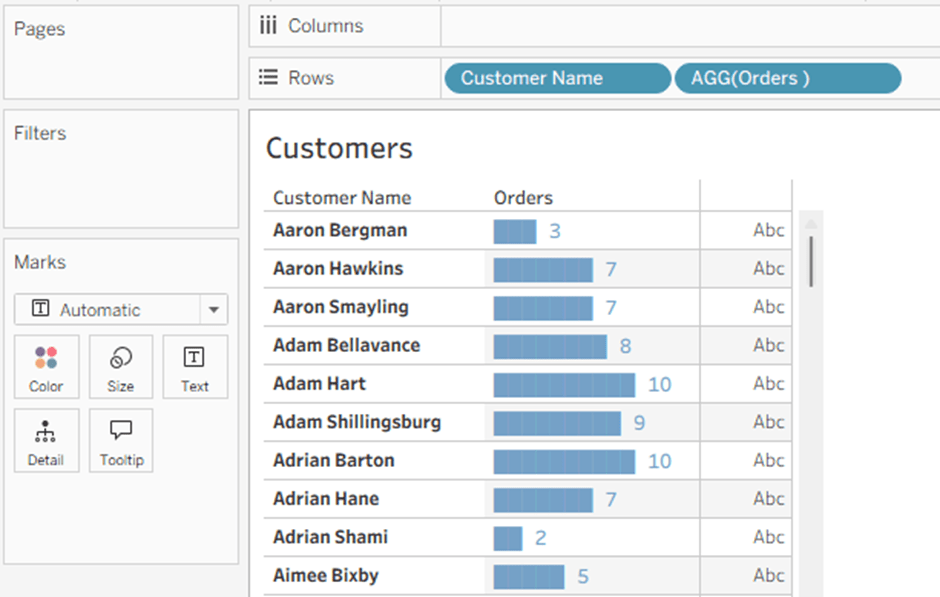
Let’s say we want to display our count of orders per customer, which is not a very large number, in bars within the table header. We create a calculated field:
REPLACE(SPACE([No. of Orders]), ” “, “█”)
The SPACE function returns a number of spaces as defined in the parameter that you give it (up to a limit, of course – don’t try to exceed 100 or so), and then we replace them with the Full Block character. The result is a text bar, that can be placed as a header in the rows of out worksheet:
The label at the end is a simple concatenation:
REPLACE(SPACE([No. of Orders]), ” “, “█”) + ” ” + STR([No. of Orders])
Another option is to use the text bar to display a percentage value, though it has to be rounded. In this example I am rounding to the nearest 5%, and filling up the 100% with the partially shaded bar:
Note the MAX function, which I am using to eliminate negative values.
The end result is below. No concatenated label this time, because formatting the percentage value to a string is complicated, so I simply added the Profit Ratio value as the next field. The Segment field is there to show that the bars are within the header.
Andy showed how text bars can be used within tooltips (before Viz in Tooltip was released), but I’m sure the community will think up other implementations, apart from the simple spicing up of a table that I showed, and probably using other special characters as well.
Most Tableau developers have little or no interaction with Tableau’s technical support, but as a partner consultant dealing with lots of customers, I have opened dozens of cases over the years. Here is a short history of the experience, and some tips for newbies.
Back in the day, before the Salesforce acquisition in 2019, Tableau Support was quite good. Anyone could open a case, even without a Tableau login, and once you traversed the initial questions trying to direct you to existing answers – or if you had the direct link – there was a comprehensive form to fill in. This included lots of technical details: type of problem, version, operating system, and the like, plus space for a short description, a long one, the urgency of the case, and files to upload.
Responses were relatively quick, and they usually knew their stuff. Sometimes the first response was by email, and sometimes on the phone – I even had the local number through which the calls were routed saved on my mobile.
After the acquisition the quality of support dropped significantly – both in my opinion and what I heard in the community. Some cases got no response at all, others were left hanging, and there was pessimism all around.
During this period, support switched to Salesforce, and you could only open a case after logging in to Salesforce and connecting to your Tableau account through there. That made opening cases more difficult, because many small customers (and some large ones) don’t bother with all the configurations on their Customer Portal. Luckily we have a partner account, so in many cases I open a case through our account for a customer, especially if I have direct access to their Tableau environment (because the call will come in to me, of course).
However, the support experience started improving. A lot. Today Salesforce Support is, in my opinion (again), significantly better than it ever was, and better than the old Tableau support. Some parts of the process are different, but the responses are faster, and definitely very professional. Some examples:
I opened a Severity 2 (urgent) case for a bug that was a show-stopper for my customer, and received a phone call within an hour. They already had a similar problem logged, and within a day we held a short session to confirm, and my report was added to the original. Unfortunately it hasn’t been fixed yet, but that’s a product issue, not support.
Recently we had a total outage on a customer’s cloud site, where no-one could view any dashboard. I opened a Severity 1 (critical) case, and received a phone call even before I had added the technical details. The support rep stayed with us for 3 remote sessions over the next 24 hours, until we found the root of the problem (which was caused by a the customer’s network security).
Another small but irritating bug that I opened with Severity 3 was easily reproduced, and fixed almost immediately, in the next patch: opened on 7 July, fixed in version 2025.2.1 (22 July).
The Process
So how does it work now?
First, you need to be logged in to your Salesforce account and linked to your organiztion, and then you can open Salesforce Help (https://help.salesforce.com/s/cases). There you see a window with the “Ask Agentforce” option:
The “Ask Agentforce” window
Clicking opens a chat window, and I simply ask the agent to open a case, supplying as many details as possible. The agent asks some follow-up questions, and then creates a case.
In the chat you can’t supply a long a detailed description, add lots of technical details such as version, or upload any files. So immediately after the case is opened, open the case page (it opens automatically, or you have a link in the automatic email you receive) and add a comment and any files. You can also respond to the email, and that appears as a comment as well.
Responses are quick, by phone and email, and I have the current incoming number (from the UK) on my mobile. Obviously they don’t know everything, but there seems to be a good knowledge base – in a recent case they couldn’t find the answer, so I asked on the forums, and was assisted by Diego Martinez (Tableau Visionary) and his memory of a previous case. In such a scenario it’s important to ask Support to add the additional knowledge to their KB, so it will be easier for future customers, and they were responsive to my request to do so.
Feedback
I still have an issue with the feedback, after the case is closed. In the old system we received a detailed survey asking about various aspects of the support – response time, representative’s knowledge, general satisfaction, and more.
Now the survey focuses mostly on the AI agent, which is just for opening the case, and not on the support itself. There are just five questions:
How do you describe your overall satisfaction with Technical Support for this case?
What can Technical Support do to make it easier to resolve your issue? Please select up to 3 areas that most impacted your experience. (this appears only if you have selected anything less than “Satisfied” on the first question)
How would you rate your experience with Agent Astro (AI-powered Autonomous Support Agent)?
What could have improved your experience with Agent Astro (AI-powered Autonomous Support Agent) before escalating to a case?
What else should our support managers know about your technical support experience? (comment box)
Part of the feedback survey
So 40% (or more) of the survey is about submitting the case, which is maybe 5% of the process. There’s no real option for rating and providing detailed feedback to the technical support, and it could be improved. I always leave comments about the fact that they’re only asking about Agent Astro and not the support itself, and I hope someone is reading them.
Summary
Tableau Support (through Salesforce) are very good, and probably still improving. Don’t overload them with questions about functionality that can be answered in the forums (just moved to Salesforce Trailhead), but don’t be shy about opening a case for real issues. And if you encounter something that looks like a bug, start by trying to find it in the open issues site, and if it’s there click on the report button so it gets more traction. Only open a case if it’s not there.
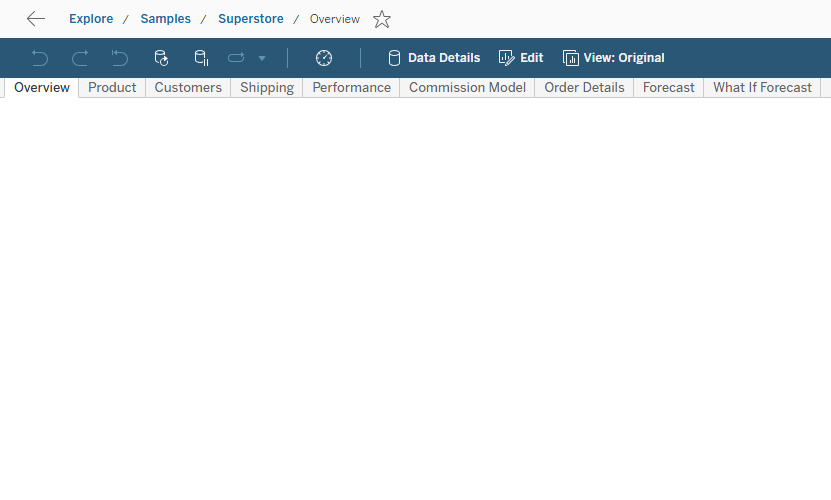
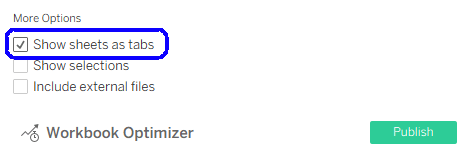
Every time we publish a workbook in Tableau, to Server, Cloud, or Public, we have the option to select the “Show sheets as tabs” checkbox. Obviously, this affects the display of the worksheet/dashboard tabs at the top of the view, but what else? And how has it changed over the years?
Permissions
A workbook with tabbed views counts as one entity for permissions. Any user who can access one view, can see all the others as well. They can also move between the views using the tabs, of course – that’s why the permissions can’t be separated: the display shows all the published tabs by default, so the user has access to them.
If tabbed views are disabled, each view in the workbook has its own permissions. Users can’t move between them using tabs, and they have to exit back to the workbook level first – so permissions can be set separately, if required. I won’t go into detail about how to actually set permissions at the view level, the documentation is here.
This enables the owner of the workbook, or administrator, to fine-tune the permissions if necessary, so some users don’t have access to certain dashboards, even in the same workbook – and in certain scenarios this is definitely a relevant use case.
Dashboard Size
The lesser known effect of setting tabbed views is the dashboard sizing. When tabbed views are on, all dashboards will be displayed as the same size in the browser, and if some have different sizes, the largest is used for all.
What does this actually mean? If all dashboard sizes are set to “Automatic”, then there’s no problem. But suppose that you have one long-form dashboard in the workbook, with a fixed height of 3000 pixels that enables the user to scroll down. If tabbed views are on, all the dashboards will enlarge to 3000 pixels in height. And the same goes for the width, of course.
If tabbed views are off, there are no such limitations, and every view can have a different size.
Navigation
One of the features that has changed over time is the navigation between views. In previous versions of Tableau, turning off tabbed views disabled the filter actions that navigate between views. I don’t recall in which version this changed, but now all the navigation options work even when tabbed views are off: filter actions, go to actions, and navigation buttons.
This was actually a serious limitation in the past, because you nearly always had to compromise on something – the permissions, size, or navigation. Now that there are no limits on navigation, it’s much easier to decide which option to choose.
One exception, of course – if tabbed views are off, you can’t navigate to a view for which you don’t have permissions. There are different results: a filter action simply won’t do anything, while a navigation button is grayed out and will display an “Access denied” message if clicked.
Performance
Even though there are still some resources on the internet saying that when you open a workbook with tabbed views, Tableau calculates all the dashboards in the workbook, that is totally incorrect.
There is no difference in performance between tabbed and un-tabbed views. Tableau loads a view only when it is accessed by the user, and it always loads the workbook metadata when you access the first view – because it is stored as a single XML file. I have verified this using performance recordings, but it was always rather obvious: I’ve seen tabbed workbooks with 20-30 dashboards loading the first one in no time at all, so there’s no way all of them were calculated within that time. So don’t worry, if you have performance issues they won’t be caused by the tabs.

 indicating a broken link, and hovering over it displays a message: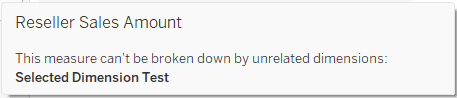







 BI Stories