Have you ever tried to edit a calculated field in Tableau, and seen only the “Edit copy” option? This appears when you’re connected to a published data source, and the field was published together with the data source – so it can only be edited through there.

So should we publish calculated fields within the data source? What are the advantages and disadvantages? And how do we “move” a calculated field to our workbook when necessary?
Note that I’ll use the abbreviation “DS” for “data source”, as it appears quite a lot in the text.
I’ll start with the disadvantages:
- As already noted, you can’t edit a calculated field that’s published in the data source. In my opinion this is a major issue – from my experience in both development and consulting with Tableau, the process includes a lot of iteration and trial and error, and the “Edit copy” barrier is a real nuisance.
- Similarly, “Replace references” won’t work either. I’ve encountered several situations in which someone replaced a field, and was surprised that the results didn’t change. On checking, we found that the referencing fields were in the published DS, so they couldn’t be affected.
- Performance.
This is a tricky one. But we once analyzed performance on a data source with a lot (I think ~100) of published fields, before and after moving them to the workbook, and there was a significant improvement when the fields were with the dashboard – not in query execution but in compilation time, which can take several seconds. I don’t know the exact reason for this, but the results are consistent: you can save 20-30% of compilation time when the calculations are not in the DS.
Advantages:
- If a calculated field is in the data source, you can re-use it in different workbooks. It also prevents different developers from modifying “standard” calculations.
- Materialization – pre-calculation of some fields in extracts – may improve performance slightly, but is relevant only for very simple calculations.
Recommendations
Note that these are my personal recommendations, and other opinions may be available.
- In general, avoid embedding calculated fields in published data sources.
- Notable exceptions:
- Basic row-level calculations, such as:
- [Price] * [Quantity]
- [First Name] + “ “ + [Last Name]
- DATEDIFF(“day”, [Start Date], [End Date])
- IFNULL([any field], “N/A”)
- Standardized business logic calculations, that you are confident will not change over time, such as:
- Profit ratio: SUM([Profit]) / SUM([Sales])
- Groups, when they are used to clean up or organize a dimension.
- Basic row-level calculations, such as:
- Remember that there is no such thing as “pre-calculation” in Tableau beyond row level, so any fields using aggregations, level of detail functions, parameters, and of course table calculations, give you no benefit when published in the DS.
So what happens in real life?
In many cases, we create a data source and perform lots of testing or iterations, or even develop dashboards in the same workbook. But then we need to split the data source and publish it separately, while leaving the calculated fields with the dashboards. Here is a tested and proven process for doing this:
Our starting point is a workbook with a local data source (extract), any number of calculated fields, and some dashboards (my example has just one).
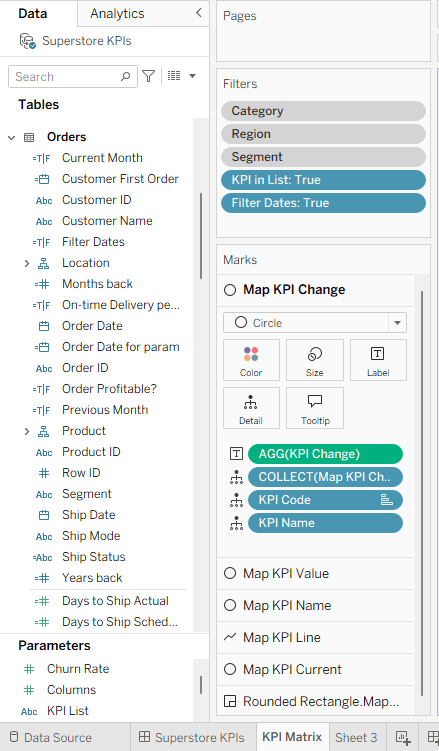
Step 1 – Copy the data source to a new workbook:
- Create a new worksheet.
- Drag any field from the data source to the worksheet.
- Right-click on the worksheet tab → Copy
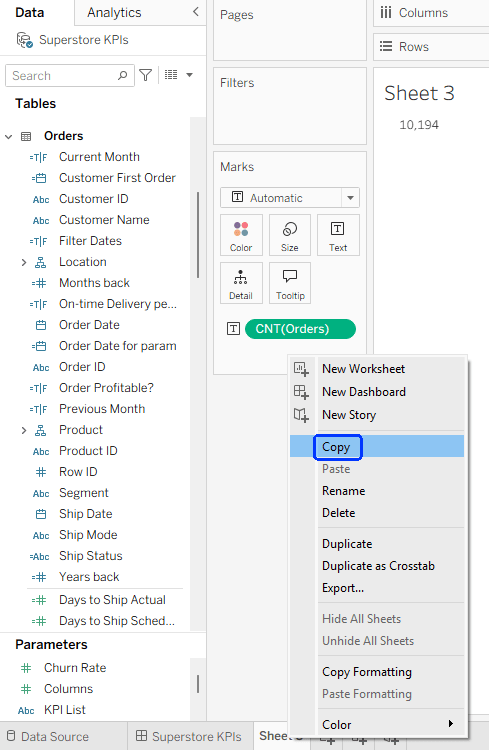
- File → New from the top menu.
- In the new workbook: right-click on “Sheet1” and Paste.
Step 2 -Remove all calculations from the data source in the new workbook:
- Click the filter icon at the top of the data pane, and select Calculation.

- Select all of the fields now in the list (or batches of several each time, if there are too many), right-click and Delete. If any warning messages appear, you can ignore them.
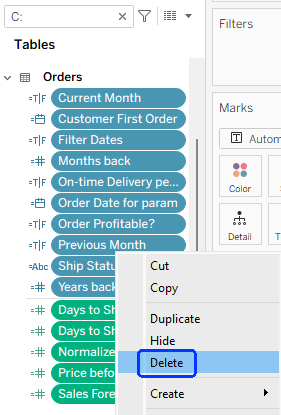
- Note that if you wish to retain any calculated fields in the data source, then they shouldn’t be deleted at this stage.
- Delete any parameters or sets as well.
Step 3 – Publish the data source (you may have to sign in to the server first)
I always save the workbook in which I developed a data source, so I can easily make modifications and republish when needed. Therefore, I recommend not to check the “Update workbook to use the published data source” checkbox when publishing, and to save this workbook under a suitable name (“xxx DS.twb”) when finished.

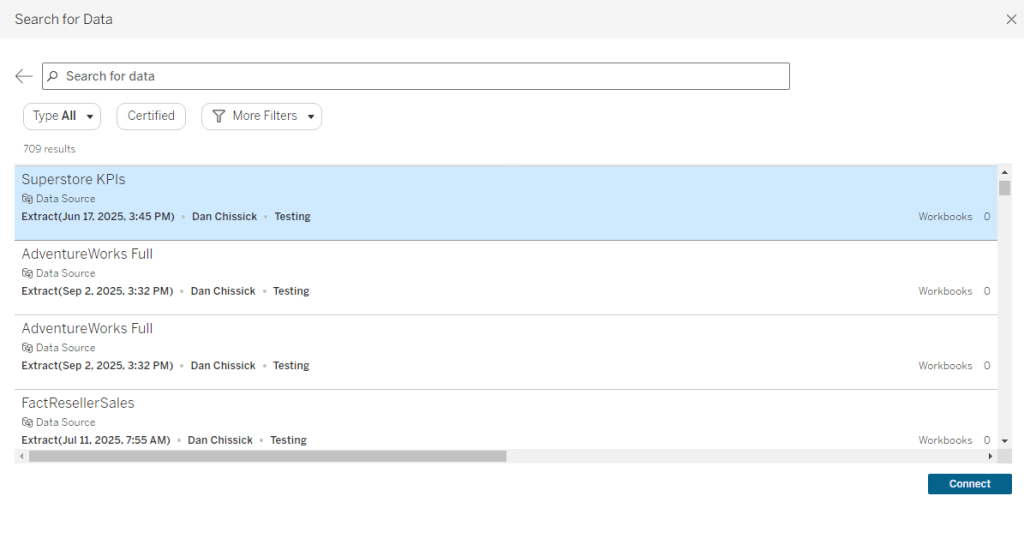
Step 4 – Connect to the published data source
- Return to your original workbook.
- Data → New data source → Tableau Server
- Select the newly published DS.
Now your original DS, with all the calculated fields, and the published DS, should appear together in the Data pane. One has the local extract icon ( ), and the other has the published DS icon.(
 ) Note that the published DS has no (or very few) calculated fields, compared to the local DS.

Step 5 – Replace the data source
- Right-click on the local DS, “Replace Data Source”, and make sure the local and published data sources are selected in the dialog box.

- Click OK
- You should see that all the calculated fields from the local DS are added to the published DS.
- Close the local DS, and rename the published DS if necessary.
Now you have a development workbook that is connected to a published DS, but with local calculated fields – that you can edit freely. You can verify that only the fields that you retained when publishing are “locked” for editing.

Summary
Published data sources are standard best practice, and you need to decide where to place your calculated fields, but it’s useful to know that there’s a relatively straightforward solution for moving those calculated fields from the data source to the workbook, at any stage of the development cycle.
As a bonus, while writing this post I thought of a tiny new feature idea for Tableau: find a way to mark calculated fields from a published DS as “locked”, so the developer can identify them in the data pane. Please add some upvotes, and maybe we’ll see it implemented at some point in the future:


 BI Stories
Leave a reply to guydinargmailcom Cancel reply