Even when you’ve been working with Tableau for over a decade, there can be some small features that you haven’t encountered. That’s what happened to me very recently, while working on a customer dashboard.
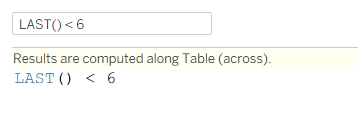
I was filtering a table of data, that included totals, using a table calculation, to get the last 6 (or N) months – something like this:
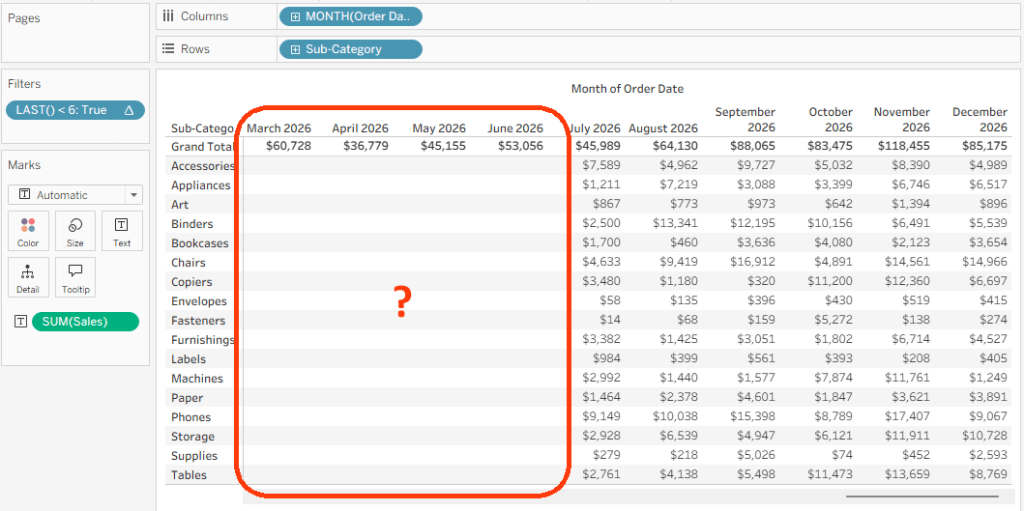
And this is what I saw:
The data was filtered, but the Grand Total row wasn’t being filtered, and for a moment I was worried that I would need some complicated calculations to overcome a strange “bug”.
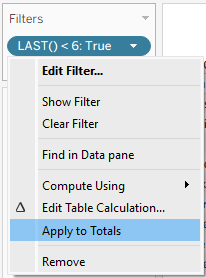
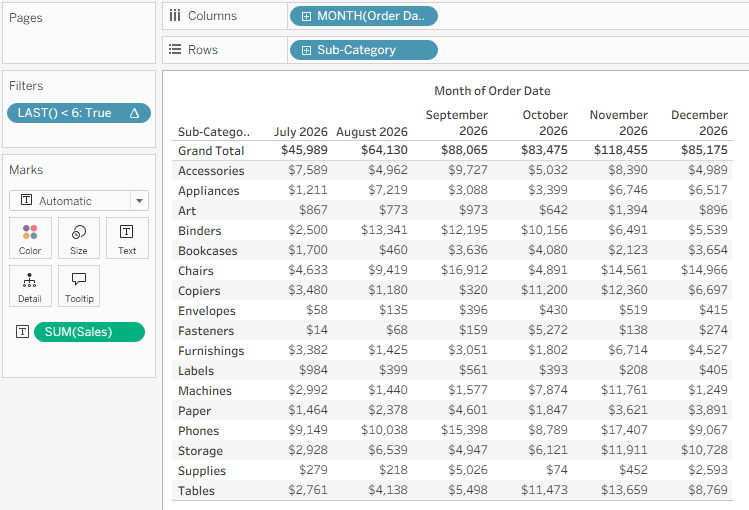
However, I played around a bit, and almost immediately saw something I had never noticed before: an “Apply to Totals” menu option in the filter card, available only for table calculations. Select it, and the totals are filtered as well.
You won’t use it just now, but if you encounter a similar problem at some point, hopefully you’ll remember this small tip, and go straight to the menu option.
And before you ask – yes, I checked, it is available in Web Edit as well.
One of the tools I use a lot in Tableau is Performance Recording, which enables you to see a detailed breakdown of the performance of any dashboard, down to thousands of different actions happening behind the scenes, and detailed timing for all of them.
In this post I’ll focus on how to use the Performance Recording (PR) tools properly, while in a future post I’ll elaborate on what we can learn from the results.
How to start
A Performance Recording can be started on both Tableau Desktop and Server (web), though not on Tableau Cloud.
Desktop
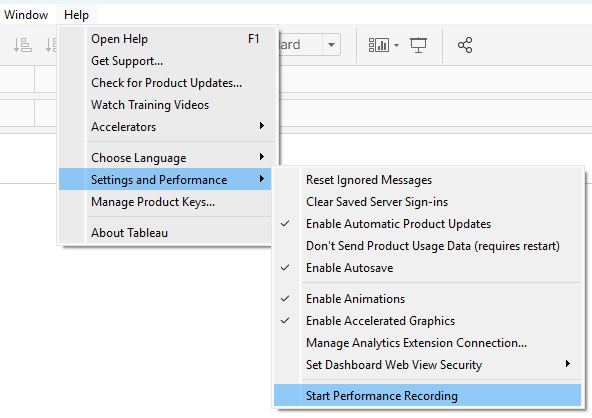
With Tableau Desktop open, go to the menu Help → Settings and Performance → Start Performance Recording. Nothing happens, but the recording has started.
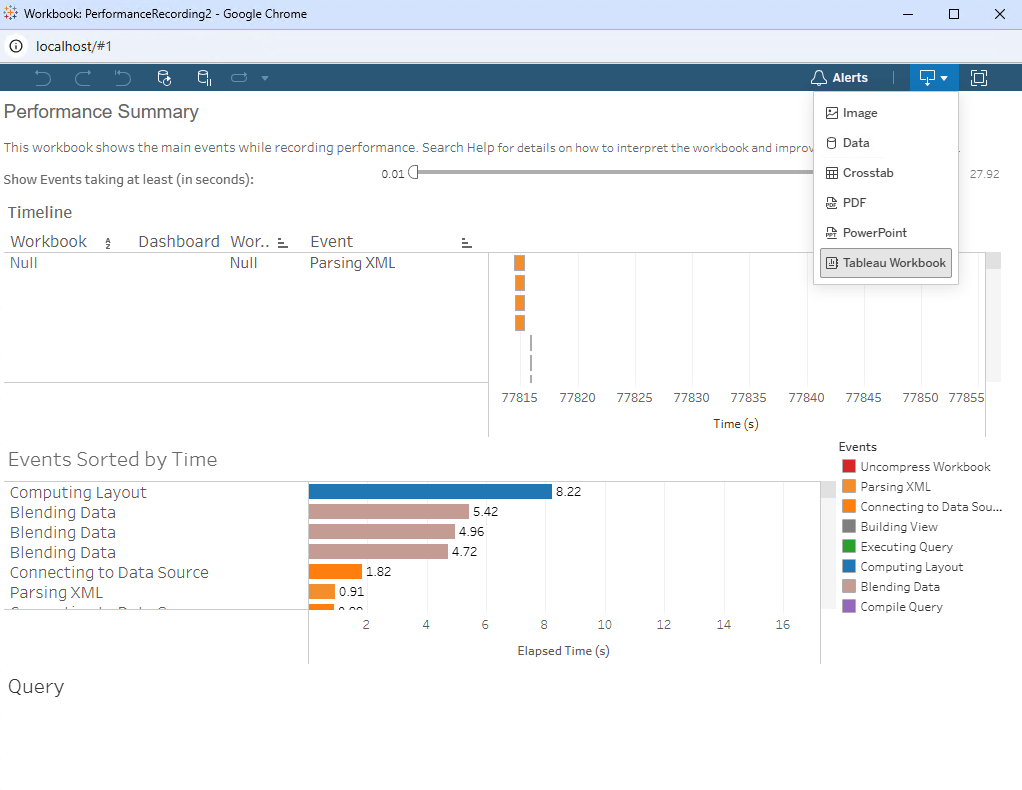
To stop the recording, use the same menu – it now says “Stop Performance Recording”. When you do so, a new Tableau workbook with the results will open after a few seconds. More about that later…
Web
On Tableau Server, you first need to make sure that the PR option is turned on in Server Settings. Then you can record any view by appending “?:record_performance=yes” to the URL. Note that if you have already opened the view, it will already have “?:iid=1” or something similar on the end. You can either replace this, opening a new session, or append and keep the session, like this: “?:iid=1&:record_performance=yes”.
At this point a popup message is displayed, and the recording icon appears in the toolbar. If it doesn’t appear, the PR option is probably disabled.
To get the results, click on the icon, and a window will open with a web version of the PR workbook. My recommendation is to download it immediately in a Tableau workbook format, and then open using Desktop.
Note that this doesn’t stop the recording. Clicking on the icon later on will download another (larger) workbook. To stop recording, remove the “record_performance=yes” tag from the URL.
As already noted, you can’t perform a PR on Tableau Cloud, but you can on Tableau Desktop that is connected to a published data source on Cloud.
What to measure
OK, so now the PR is running, but how do you measure properly? Here are some tips.
Make sure the data isn’t being retrieved from cache. If you select a data set that has already been queried (in your Desktop session or on the server), there’s a good chance that the dashboard will load much faster, because it is already cached. To prevent this, I always include switching filters in my scenario, so the data changes and has to be queried again.
Know what is working slowly, so you can test it. It could be a specific dashboard in a workbook, a drilldown action, or a filter. Make sure you’re testing the right actions.
If you’re performing several steps, pause between them for 5-10 seconds (at least). This creates a visible gap in the PR timeline, so you can see your steps distinctly.
Take a note of your actions, so you know which part of the recording is which action. Tableau won’t tell you.
Fixing the results
OK, so now we have a PR workbook, and it doesn’t look good. The template for this workbook hasn’t been updated by Tableau for at least a decade, and has some issues. I always apply a few fixes before analyzing the data:
Resize both dashboards (“Performance Summary”, “Detailed Views”) to Automatic instead of their default size, which is too small.
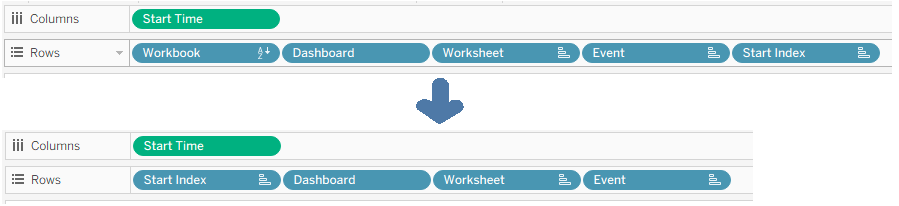
Open the Timeline worksheet, go to the Rows shelf, and drag the last field (Start Index) onto the first one (Workbook), replacing it. Note that this reorganizes the worksheet.
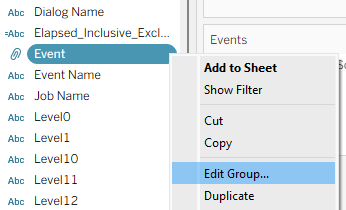
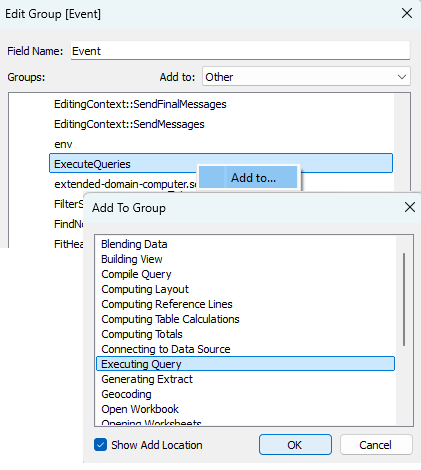
Now go to the data pane, and edit the “Event” group. There’s a bug (documented here) and some important events haven’t been assigned to the “Executing Query” group, which is very important, so we have to assign them manually. Open the “Others” group, and if you find “qp.run_query” or “Executing Queries” there, assign them to the “Executing Query” group, and click OK.
Finally, open the Query worksheet and edit the text – I recommend decreasing the font size to 9 points and aligning to top left, but this is less important than the other modifications.
On Desktop, the PR dashboard template can actually be hacked – you can replace it with your own layout and style by switching the workbook, but there’s a procedure to be followed:
Prepare your dashboard design(s) in a workbook based on any performance recording that you’be made.
Open the existing PR template: C:\Program Files\Tableau\Tableau <version>\Performance\PerformanceRecordingv101.twbx
Copy a worksheet from the template to your new file. This will copy over the template data source as well, which is what we really need.
Use Replace Data Source to switch the workbook from your data source to the copied one.
Close your original data source.
Rename the remaining data source to “Timeline”.
Delete the worksheet that you copied over, and save the workbook.
Replace the original workbook in the Performance folder with yours – rename it to “PerformanceRecordingv101 old.twbx” and then rename your workbook to “PerformanceRecordingv101.twbx”.
The next time you perform a PR on this version of Tableau Desktop, the result should appear with the new layout.
I’ve tried to find a similar hack for Tableau Server, but without success. Apparently the template is within the internal database and inaccessible, but I’m sure someone will soon have an AI agent that modifies the resulting PR workbook at the click of a button, instead of repeating several steps each time.
Problems
There are still a couple of issues with the results of a PR, even if formatted beautifully and performed well. Tableau haven’t updated the functionality for years, and some gaps have grown bigger and bigger:
Most events recorded don’t include the name of the relevant worksheet, or even the dashboard. This is a limitation especially when you are looking for a specific bottleneck, because you won’t know which worksheet is responsible for a slow query .
Some “Executing query” data displays the actual query string, but for multi-fact data sources there is nothing. The best query results can be achieved with Tableau Desktop and embedded (not published) data sources, but that setup usually doesn’t reflect the actual user environment.
Summary
Tableau Performance Recordings aren’t perfect, but are still a useful tool for analyzing tricky performance issues. In a future post I’ll show how to read a PR workbook and understand what it’s telling you.
I’m actually writing this post because I encountered a small bug in Tableau’s incremental refresh setup, but it’s an opportunity to make a case for the functionality in general.
At first, incremental refresh of extracts wasn’t very useful, because you could only add new data – either by a numerical or a timestamp field. It was nice if your large data table had only inserts, like log entries, but that’s not the case in most operational systems.
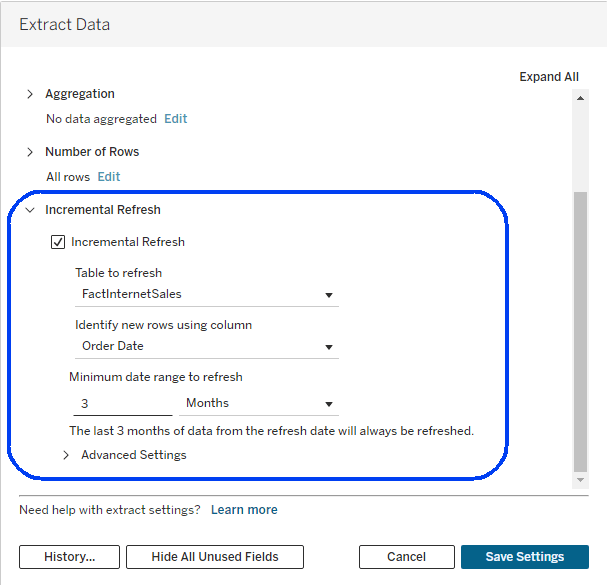
This changed back in 2023, and now you can refresh an extract incrementally based on a date range, so all data within that range is replaced – thus enabling updated and deleted records to be modified in the extract. The limitation is that only one logical table in the extract can be defined for incremental refresh – all the others are still fully refreshed.
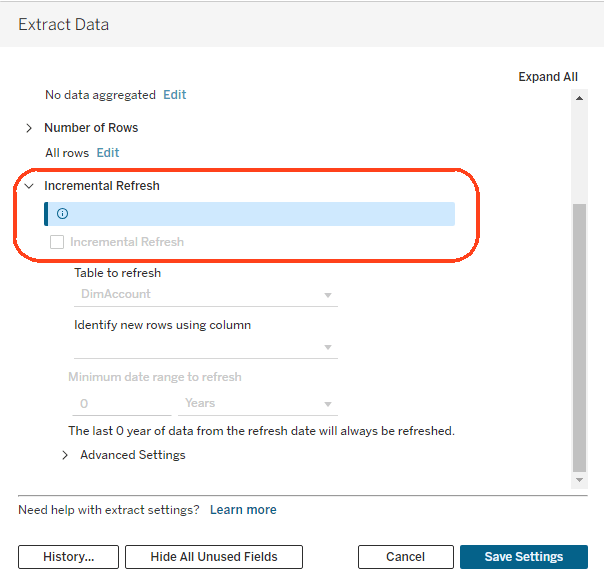
Since this upgrade, I have seen more and more customers start using incremental refresh, and therefore had to debug more problems. This latest one was a bit strange – in some data sources, you simply couldn’t check the incremental checkbox, even though they were very similar to other data sources that had no such problem. They had a similar structure, the same database connection, and no special features. So what was different?
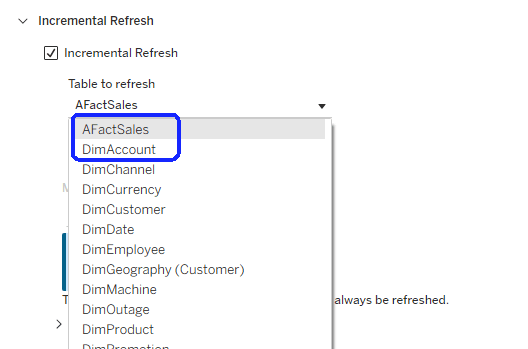
The solution was found by Vered, an analyst for one of my customers. When you first open the Incremental refresh dialog, the dropdown list of tables is sorted alphabetically, and the first table is displayed. If that table is not eligible for an incremental refresh, because it has no relevant fields, the options are disabled. In the screenshot above, the DimAccount table is the first in the list, and includes only text fields, so I’m stuck.
Obviously this is a bug, and I’m opening a case with Tableau Support, but there’s a very simple workaround: rename one or more of the tables so that the first in the list includes a numeric or date field. Note that special characters aren’t taken into account, and regular letters come after capital letters. In this same data source, I renamed “FactSales” to “AFact Sales”, and the problem was solved.
Incremental refresh is very useful with very large data tables, and is now becoming even more powerful, with Composable Data Sources (CDS). You can still only define one incremental table per data source, so what if it includes two or more gigantic tables? With CDS, you can split such a data source into several parts, define an incremental refresh on each, and reassemble them using CDS into a data source that is identical to the original.
Tableau 2026.2.1 was released a couple of days ago with CDS enabled, so within a few months this feature alone will encourage customers to upgrade their servers and start saving valuable resources on extracts.
A common feature of many programming languages is User-Defined Functions (UDF). These are currently missing from Tableau, and I think adding such an option would be a real benefit to developers – what you might call a “Quality of Life” improvement.
What do I mean by UDF? I mean functions that can be created just like calculated fields, but with placeholders for parameters or fields so that they can be re-used several times, instead of being re-written with slight variations. We’ll start by defining an option for the syntax, and then look at a few examples.
What I can envisage as syntax for a UDF is similar to a normal calculated field, but with a placeholder for a referenced field or parameter. For example, let’s say I have a calculation for Sales in various periods:
Calculated fields:
Current Period Sales: SUM(IF [Current Period] THEN [Sales] END)
Previous Period Sales: SUM(IF [Previous Period] THEN [Sales] END)
Parallel Period Sales: SUM(IF [Parallel Period] THEN [Sales] END)
Implementation using a UDF:
Period Sales: SUM(IF <field1> THEN [Sales] END)
(This is a definition of a UDF accepting a parameter called <field1>)
Current Period Sales: [Period Sales]([Current Period])
Previous Period Sales: [Period Sales]([Previous Period])
Parallel Period Sales: [Period Sales]([Parallel Period])
This is just a simple example, of course. I’m sure that if Tableau decide to implement something like this they’ll find a good idea for the exact syntax.
UDFs have two great advantages. One is that you can re-use complicated expressions by simply changing the referenced field, as in my example, saving the effort of duplicating them and making small changes. The other is maintainability – if you need to modify the calculation, you only have to modify the UDF, and not multiple similar calculated fields.
I’ve encountered countless situations where this could be useful, but let’s just mention two of them. One is an expression commonly used (with lots of variations) to format numeric fields as text (originally from The Information Lab):
IF ABS(AVG([Population Total])) >= 1000000000 THEN
//round for billions
STR(ROUND(AVG([Population Total] / 1000000000), 1)) + 'b'
ELSEIF ABS(AVG([Population Total])) >= 1000000 THEN
//round for millions
STR(ROUND(AVG([Population Total] / 1000000), 1)) + 'm'
ELSEIF ABS(AVG([Population Total])) >= 1000 THEN
//round for thousands
STR(ROUND(AVG([Population Total] / 1000), 1)) + 'k'
ELSE
STR(ROUND(AVG([Population Total]),0))
END
Now assume that you need to format several numeric fields, not just [Population Total]. Today, you have to duplicate the calculated field for each one, and replace the [Population Total] with the numeric field name. Then, if you decide to modify the formatting logic, you have to go and edit each one, wasting valuable time and increasing the chance of errors. A UDF would make life much easier!
Another example is dimension switching, where we use a parameter to enable the user to switch between dimensions in a worksheet:
CASE [Select Dimension]
WHEN “State” THEN [State]
WHEN “Category” THEN [Category]
WHEN “Sub-Category” THEN [SubCategory]
WHEN “Customer” THEN [Customer]
END
I some scenarios I have four such fields, nested one after the other (or two on rows and two on columns), all with the same dimensions but based on different parameters (which have the same list of values, but that’s another issue). So I have four similar copies of the calculation above, each using a different parameter name, and if I decide to add a new dimension to the user’s options I have to modify all of them. A simple UDF would help.
There’s already an idea about this on the Salesforce Ideas list, but I know it’s not on the roadmap. Nowadays everyone is working on AI and more advanced ideas, but this should have been implemented years ago.
Tableau has many other pain points, of course, and maybe one day I’ll post a list of the ones that hurt the most – and I mean stuff that seems to be easy to fix, not anything requiring major modifications. This is just one example, and maybe we’ll see it one day…
Here’s a list of 7 small and less well-known things you can move, sort or select in Tableau Desktop. If you know about all of these, you’re a Jedi. I won’t tell how many of them were under my radar, for how many years, because it’s embarrassing.
Obviously there are many more similar features, but most are well-known. I consult with a lot of developers, and I picked these based on my experience of what usually gets missed.
1
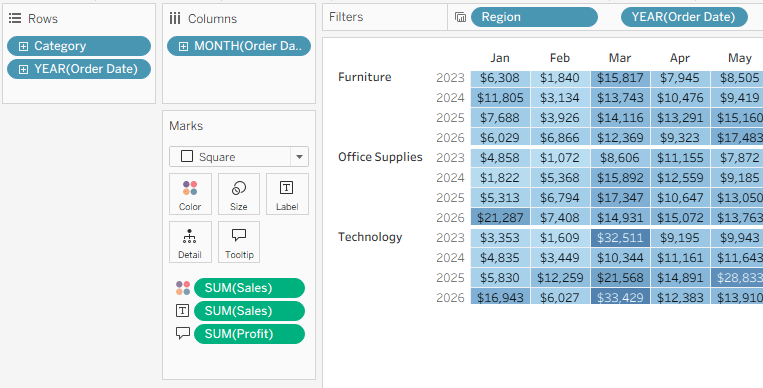
Drag the cards around (filters, rows, columns, etc.)
Note – the new layout is saved per worksheet, not for the whole workbook.
2
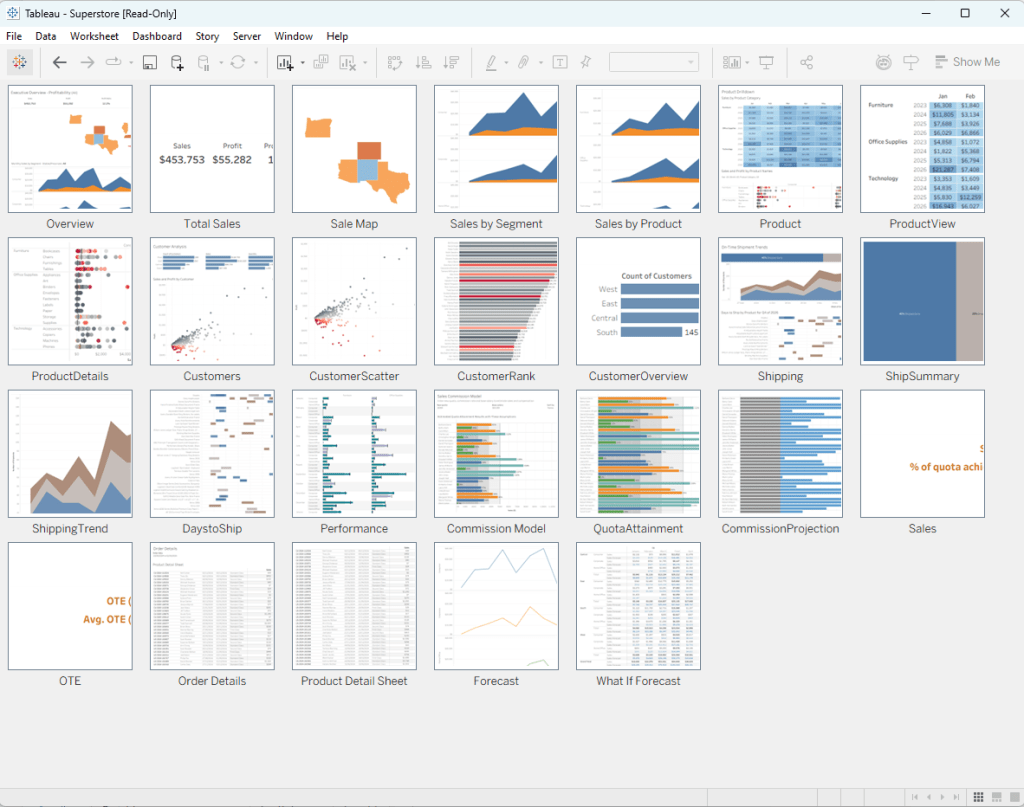
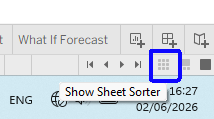
Use the Sheet Sorter to organize your dashboards/worksheets – it’s the small icon on the bottom right.
Tip – if it’s not showing all the thumbnails, you can right-click anywhere and “Refresh All Thumbnails”.
3
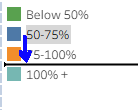
Drag legend items to reorder them in the chart.
4
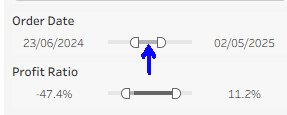
On a range filter (numerical or date), if you drag from the center of the range it keeps the interval constant and moves both ends of the range.
This is good for users as well as developers.
5
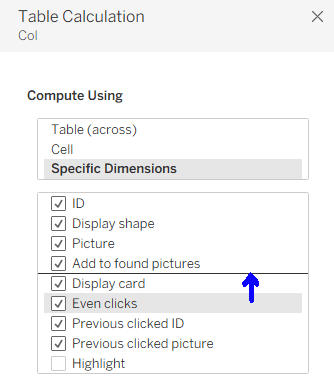
When editing table calculations, the fields can be dragged into the right order.
6
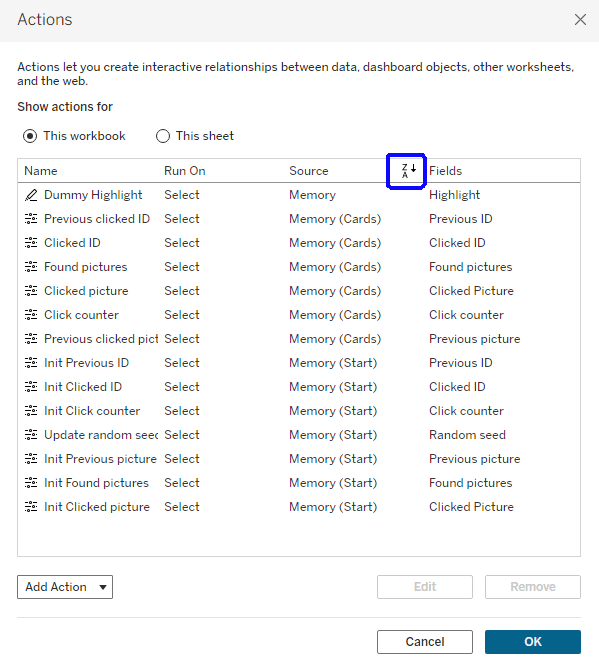
Dashboard or worksheet actions can be sorted by clicking on the column header.
7
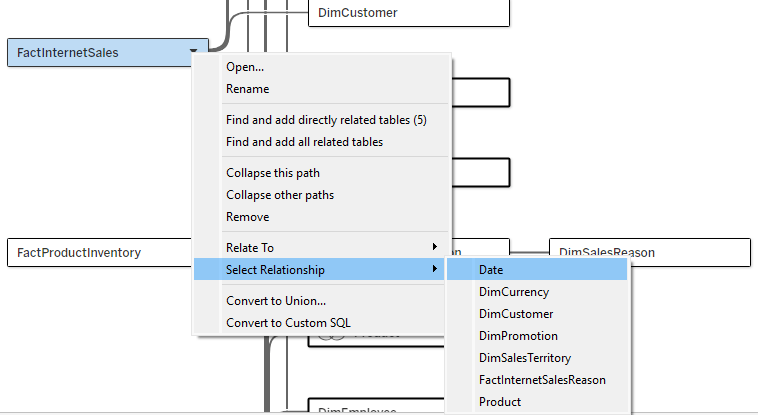
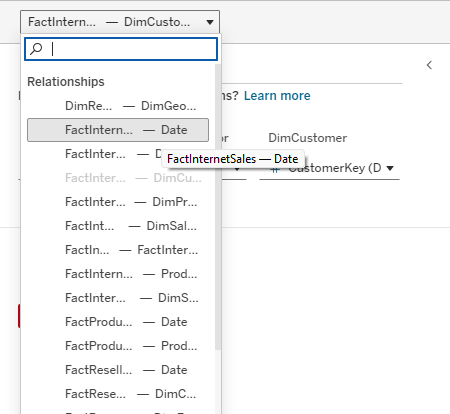
If you’re having trouble clicking exactly on a relationship “noodle” to select it in your data source, go to the menu for one of the tables and “Select Relationship”.
You can also do this from the dropdown above the relationship/table details pane, but the text there is always cut off (though it has a tooltip).
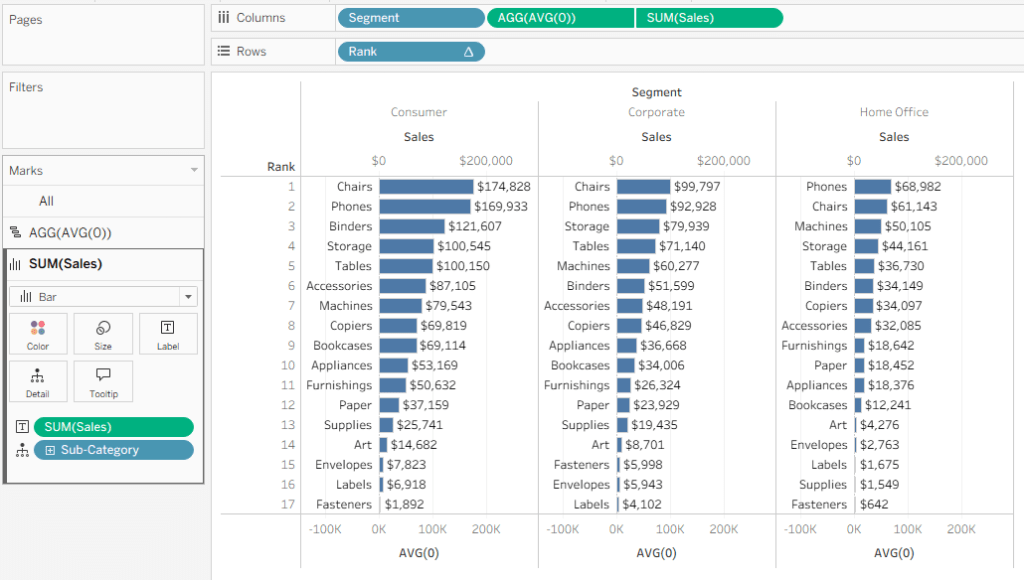
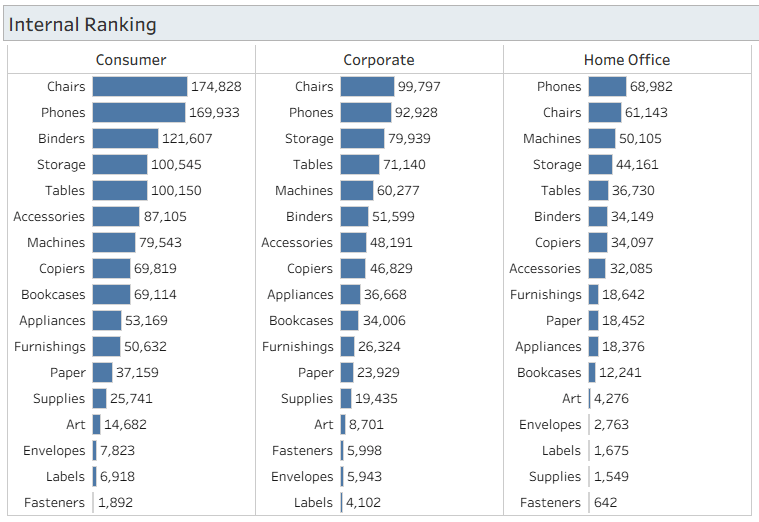
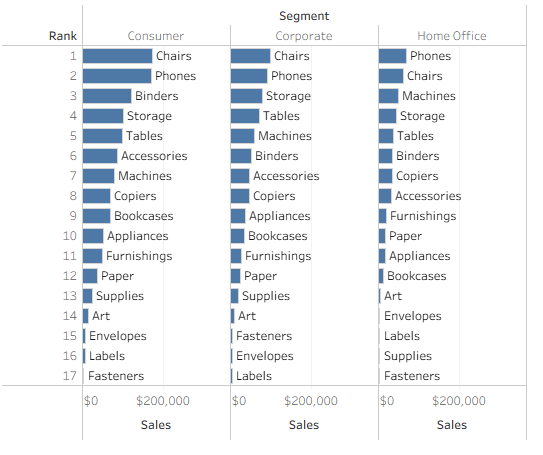
A customer recently asked me how to display a bar chart like this:
You have segments (any dimension) on the columns, and then the bars are sorted and labelled by the categories (any other dimension) on the rows.
If your segments are static you can have 3 separate worksheets side by side, but that’s not the proper way to do it, and it won’t work if the segments themselves are changing based on some other filter. Fortunately, Tableau has Table Calculations, and there’s a neat and simple solution.
The only calculated field I need is [Rank]: RANK(SUM([Sales]))
I then place this on Rows, Segment on Columns, drag Sales to Columns in order to create bars, and add Sub-Category to Detail.
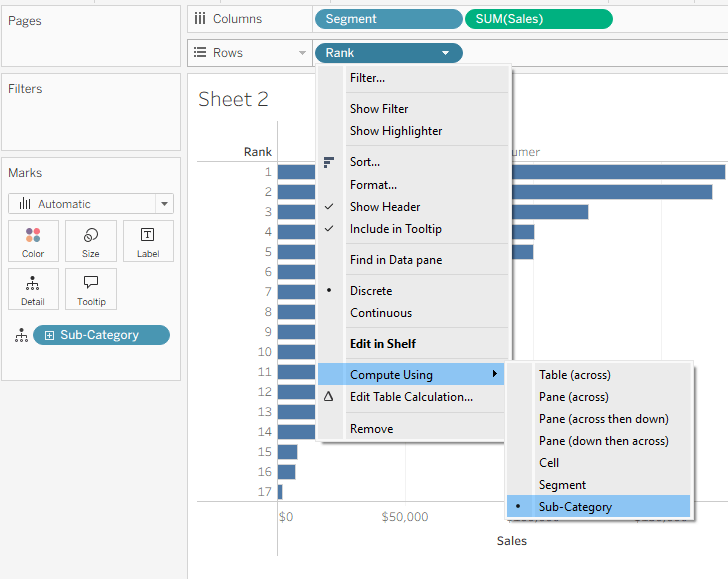
What a mess! Just one more thing… go to the menu for Rank and Compute using → Sub-Category. And we have a bar chart, sorted separately for each segment.
The rest is just formatting, but it’s the important part:
Add Sub-Category to Labels on the bars.
Nice, but that’s not what the customer wants. The Sub-Category has to be to the left of the bar, and the value as a regular label.
Add a new field on Columns: AVG(0)
In the menu for this field, apply Dual Axis. This temporarily messes up the chart.
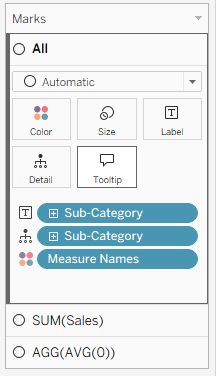
We now have three Mark cards on the left:
On the All card, remove Measure Names
On the SUM(Sales) card, change the mark type to Bar, and drag Sales to Label instead of Sub-Category
On the AGG(AVG(0)) card, change the mark type to Gantt Bar, and drag Sub-Category to Label. Change the Label alignment to Left.
Right-click on one of the axes and Synchronize Axis. Then drag the AGG(AVG(0)) pill in the Columns so it’s before (to the left of) the SUM(Sales) pill.
You should be seeing this:
The rest is pure cosmetics:
Format Lines to remove the grid lines from the chart.
Unclick “Show Header” on the Rank pill.
Edit each axis (top and bottom) so it shows whatever you need, or remove them altogether using Show Header on the green pills.
Format the bars and labels in any way that you want
And the end result is as required, with the number of columns flexible – you can even enable the user to switch dimensions easily using a parameter. Each column has the Sales sorted and labelled neatly by Sub-Category.
There are more complicated use cases, of course, such as negative values that can overlap with the labels. In such cases some tweaking of formulas is needed, but this is the basic technique. And my customer is already using the technique in a production dashboard.
Tableau won’t always behave exactly the way you want, but if you know and understand how it works, you can apply simple solutions for many of the small irritants. This is one of them.
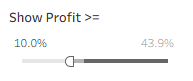
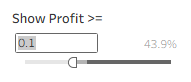
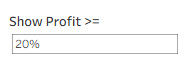
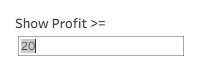
I was asked this question about a percentage filter. The worksheet is filtered by a percentage measure, and there’s a quick filter by range, with type-in values – which looks OK, until the user tries to type in the value, and discovers that instead of “10%” or “10”, she has to type in “0.1”.
The measure is already formatted as a percentage, so what can a person do?
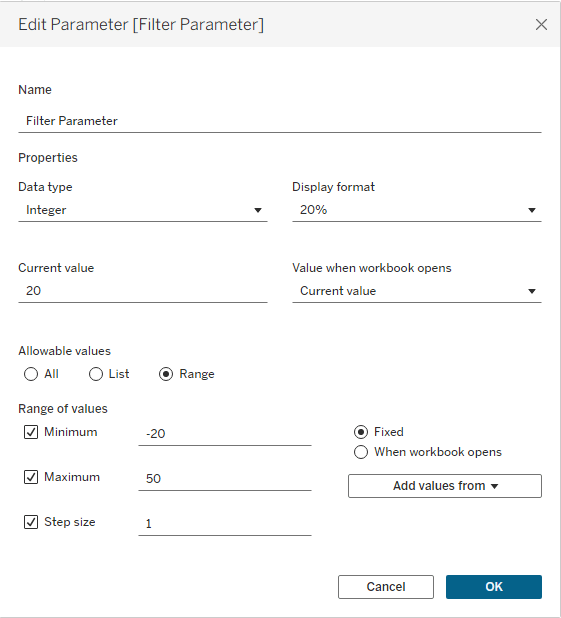
First, create a parameter with the desired range of values.
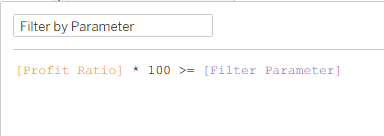
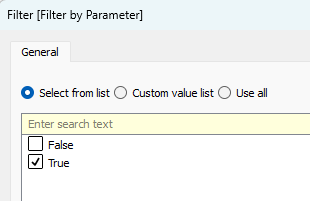
Next, create a calculated field filtering by the parameter, drag it to the Filters pane, and select “True”.
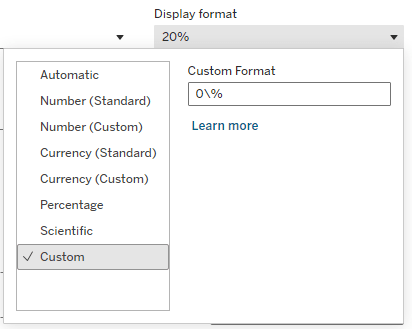
Now comes the trick. Format the parameter with the custom format “0\%”. Unlike the “0%” format, which will multiply the value by 100 in the display (try it), the backslash is an escape character that is not shown, and renders the following character as a simple text. So the “0” format is a regular number, and “\%” just adds a % suffix.
Now, when the user clicks in the box to type in the value, she can type in the actual percentage number.
One of the foundations of the Tableau community (or DataFam, as we call it) has always been the Tableau Forums, where anyone can ask a question about Tableau and receive answers. The Forums were integrated into the Salesforce system at the end of 2025, but I’ll start the story at the beginning.
For years of working with Tableau, I was aware of the forums, but not active on them. If you searched on Google for an answer on some issue, many of the solutions displayed would be from the forums, which were open to anyone to read, so I read many of the threads, but I never actually created a user and logged in.
In June 2020, feeling that I was already a Tableau expert and I needed to contribute, I decided to act. I created a user, and committed to answering at least one open question every week. From that point onwards I was in the system, and learnt the rules:
You received 10 points for answering a question, and 25 points when marked as “best answer”.
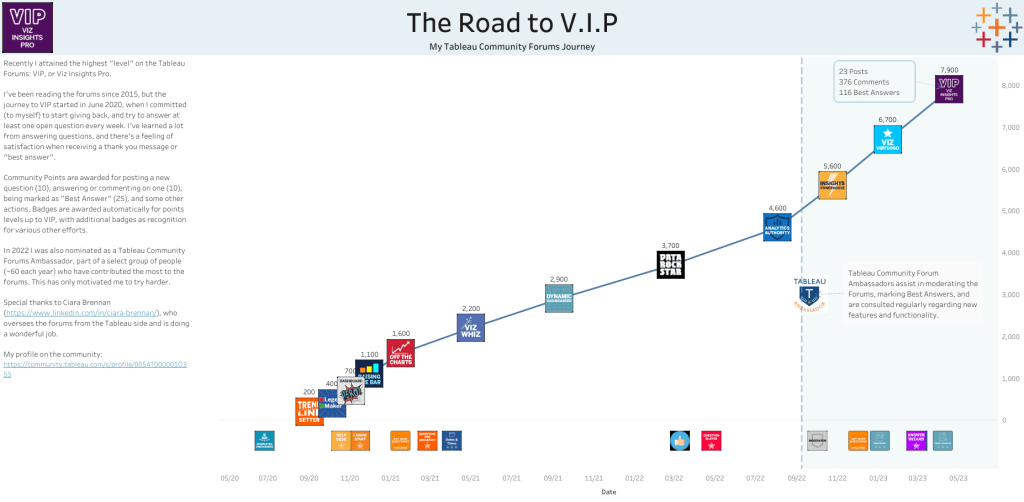
These points were accummulated and you then received “badges”, with colorful icons and catchy names. There were 15 levels, going up to V.I.P. (Viz Insights Pro) at 7,900 points. You can see my progress in a viz I created on Tableau Public when I reached that level, after almost 3 years of activity.
You could also see where you were ranked on the “Leaderboard”, especially in the all-time rankings. After VIP level my aim was always to break into the top 100 all-time, and I succeeded in doing this around the beginning of 2025, with about 14,000 points. For comparison, the all-time leader is Jim Dehner (still active), who reached 500,000 points, and there are several more with over 100,000. Get a life!
Click to open the viz
As time went on I increased my cadence, of course. I would log in weekly to look for a question to answer, and if I saw more than one opportunity I answered two or three. And then my answer would need a follow-up, so I logged in again, and so on. In June 2022, when the annual nominations for Tableau Forums Ambassadors came up, I was contacted by Ciara Brennan, who was in charge of the forums from the Tableau side (already Salesforce by then), and encouraged to nominate myself. Obviously my nomination was accepted, and I became an Ambassador for the first time.
Becoming an Ambassador opened up new horizons. There were 40-60 Forums Ambassadors each year, and we were the ones answering a large majority of the questions. In addition, we were the moderators of the forums: suspicious messages, or those from new users, were on hold until we released them – or deleted and flagged the spam account for removal. We could also remove or edit messages that weren’t identified by the system as spam. The spam included a lot of weird marketing bots, but later on we had to cope with AI-generated answers as well.
Ambassadors could also mark answers as “accepted”, as many users don’t do that for their own questions, and this is the best way to close an open question. So sometimes I would get a bunch of “Your answer was accepted” emails together, and I knew some other Ambassador was working on a cleanup.
All this was orchestrated by Ciara, who organized monthly Zoom meetings, where I made new acquaintances, updated us with statistics, planned Sprints for specific subjects, and searched for experts to answer difficult questions that were being neglected.
Towards the end of 2025, two things happened. First, the Ambassador system changed. Instead of grouping everyone by subjects (Public, Forums, User Group, Social, Academic, etc.), all these were bunched into a single definition of “Tableau Community Ambassadors”, so now there is no defined group of Forum Ambassadors who can collaborate and moderate the forums. At the same time, the whole Forums system was migrated to the Salesforce platform on Trailhead.
The Salesforce system has been serving Salesforce customers for years, and is certainly more robust and advanced than the old forums website on Tableau, which was quite ancient. The main advantages are:
A more modern interface.
Maintained as part of the Salesforce website.
A much better spam filter.
and… that’s about it
At the moment, a few months on, we’re still learning and improving, but from my viewpoint as a Tableau expert there are quite a few disadvantages. Let’s start with the unavoidable consequences of the migration:
Users had to create a new login on Trailhead.
All existing content was migrated, but users who didn’t create a corresponding login now appear as anonymous in the history, and links that pointed to other Tableau forums posts were broken.
All the leaderboard history is gone ☹
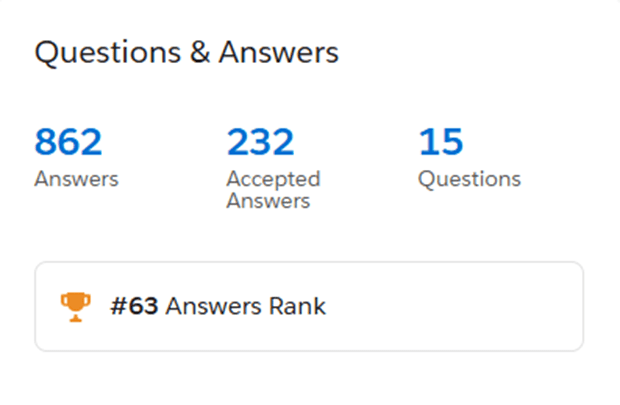
The process of asking and answering questions is more or less the same, though without the special Ambassador privileges from before. There is a sort of points system, but there’s no real leaderboard and you can only see the 5 top points earners in the last 30 days. I can see my total answers and ranking for all time, but no other statistics.
So is it working? Yes, but less. It’s difficult to count, but I think there were 500-1,000 new questions per month in the old forums, and some statistics that we were shown in the old Ambassador meetings support that. I counted before the forums closed, and there were over 50 questions in the last 3 days (22-24 October 2025), and the 24th wasn’t even a full day. In comparison, I counted about 30 questions a week (let’s say up to 150 a month) on the Salesforce platform – probably 70-80% less.
One of the reasons is the Tableau community Slack channel “community-tableau-questions”, which serves as an additional question and answer forum, and has at least 50-60 questions a month. It’s a nice idea, but it’s a closed system (though there are over 20,000 users), and there’s no real searchability and history like on the Trailhead site – so I would really prefer if the channel was closed and traffic directed to Trailhead.
Another reason could be AI, but that’s a totally different issue…
Obviously, with less new questions, it’s more difficult to find interesting ones to answer, but I’m still trying to meet my weekly “quota” and be active. I hope traffic increases as time goes by, and more new users login to Trailhead. The Tableau Forums are definitely not dead, just modernized – though I suspect many of us miss our old, creaking haunting grounds.
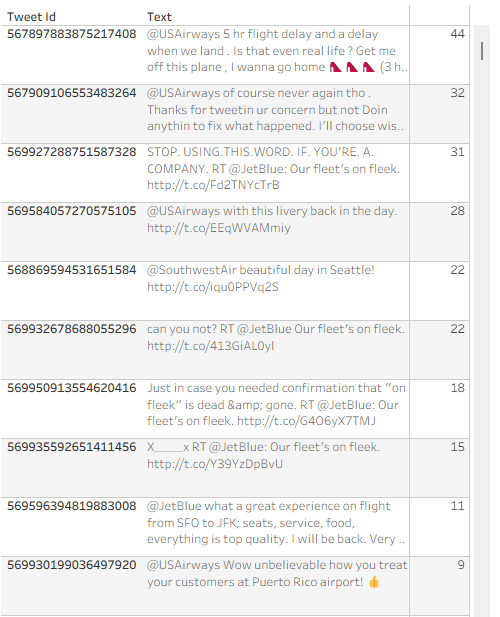
Recently someone noted that Tableau tables don’t do a great job displaying long text fields – the row height can be adjusted to accommodate any number of lines of text when it is wrapped, but it is fixed for the whole table, not dynamic per row. Look at the example below (just some old tweet dataset that was lying around), and you can see that all rows have exactly 3 lines, so in many cases there is blank space, or an overflow (two dots at the end):
Is there a solution? Built-in there isn’t, but a couple of calculations can certainly help and format our text table more efficiently. This is how it’s done.
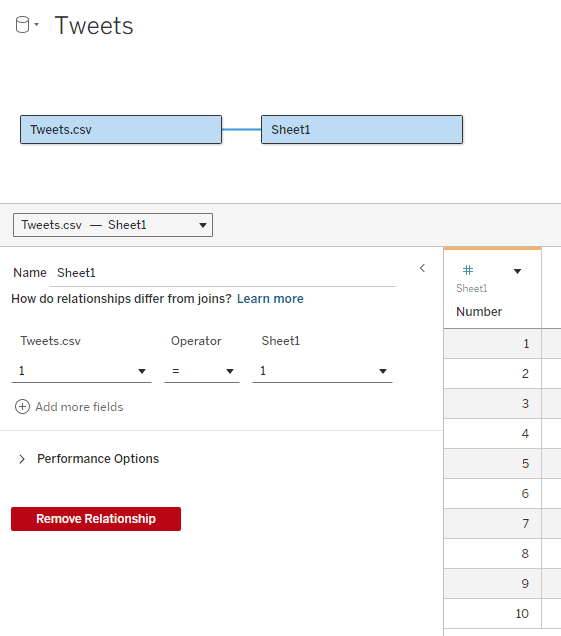
First, I define an integer parameter called “Text length” and set the value to 40. I’ll use it later. Now I need to add an “expander table” to my data source. This is a simple table (I usually use Excel) with a column of numbers, from 1 to as many as needed. In the example I don’t expect to display more than 10 lines of text, so I limit the table to 10, but it can be a lot more. The relationship between the table and my data table is set as a full cross-join: 1 = 1
What I’m going to do now is split the text field into separate lines, by finding the first space after every N characters (N being my parameter) and cutting the text at that point. For this I use 3 calculated fields:
Cutoff N (this marks the first space after N * Number characters (or the end of the text)
IF FIND([Text], ” “, [Number] * [Text length]) = 0 THEN LEN([Text])+1 ELSE FIND([Text], ” “, [Number] * [Text length]) END
Cutoff N-1 (this is the previous space)
FIND([Text], ” “, ([Number] – 1) * [Text length])
Text N (cut out the text from [Cutoff N-1] to [Cutoff N]
IF [Number] = 1 THEN LEFT([Text], [Cutoff N]) ELSE TRIM(MID([Text], [Cutoff N-1], [Cutoff N] – [Cutoff N-1])) END
Note that I’m using the [Number] field from my expander table to define the line number (N), and the number of characters in each line of text depends on the [Text length] parameter.
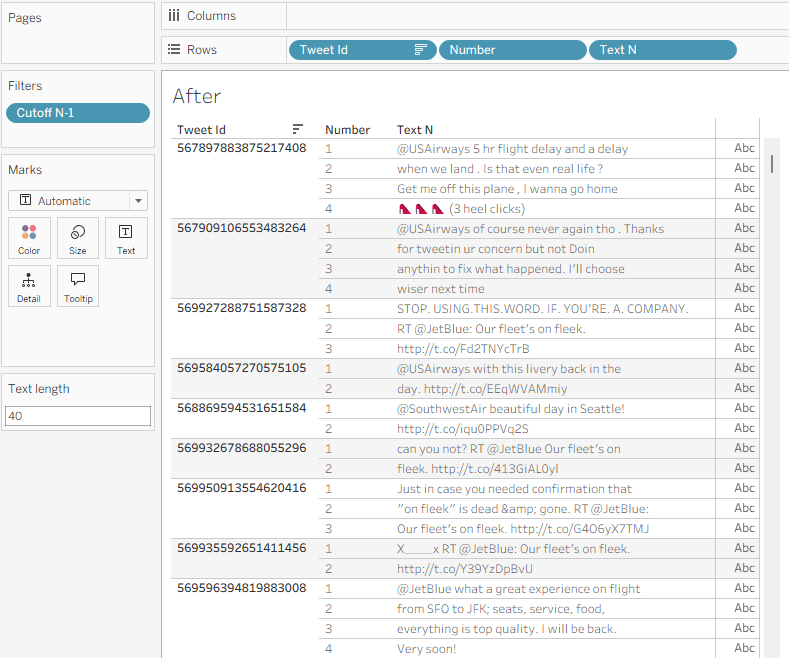
Place [Number] on rows, then [Text N], and I get my table with the text field split nicely into lines:
I can use the Text length parameter to play with the field width, and see what it looks like with different values.
A few additional formatting steps:
Uncheck “Show Header” on the Number field in Rows.
Format the Borders so the lines within the text disappear.
Fine-tune the row shading.
If there’s no field after Text N, switch the mark type to Polygon so the “abc” disappears.
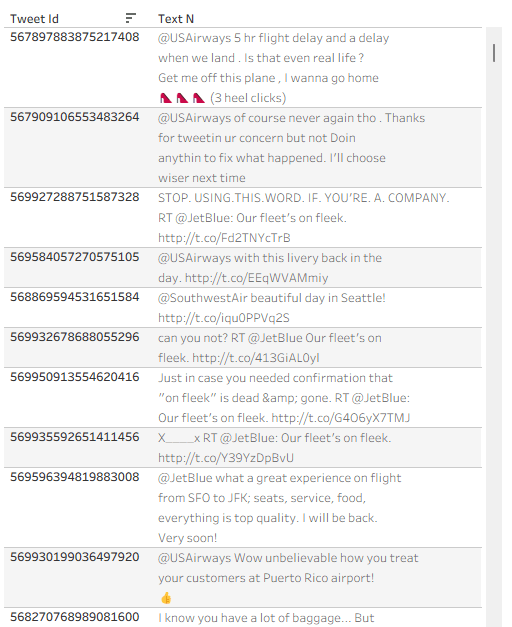
And I have a formatted text table:
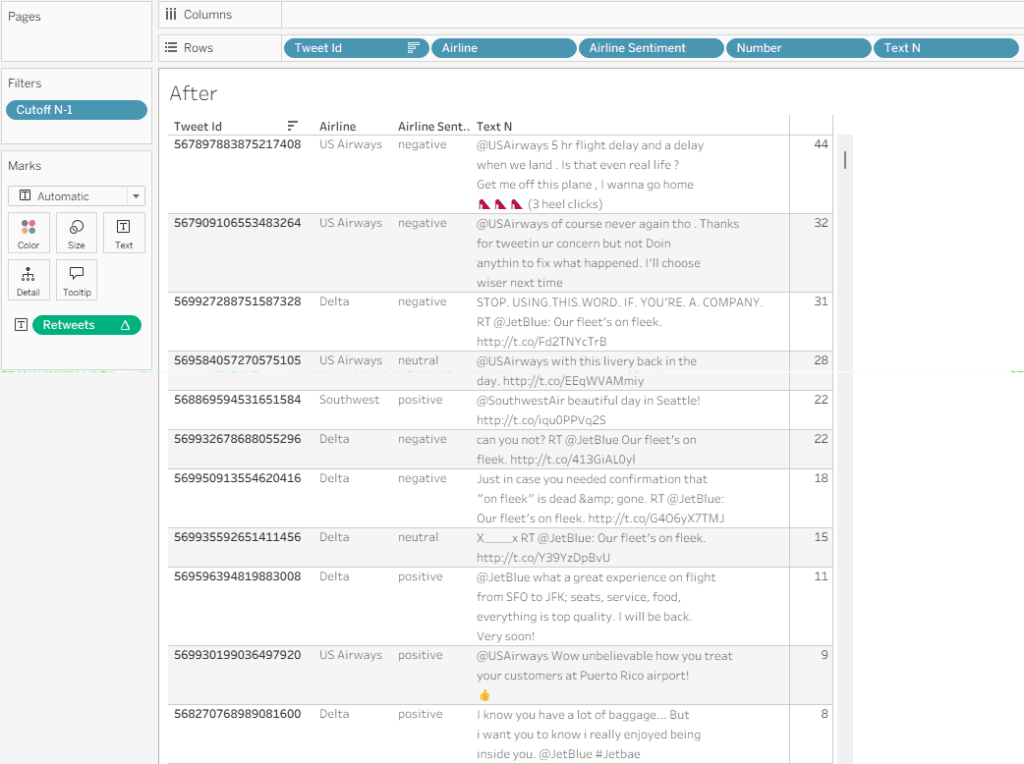
Now let’s say that I need some data field to the right of my text – in this example I’ll use “Retweet count”. If I just add the field, it will display the same value for each line of text, so I need to use a table calculation:
Retweets
IF FIRST() = 0 THEN SUM([Retweet Count]) END
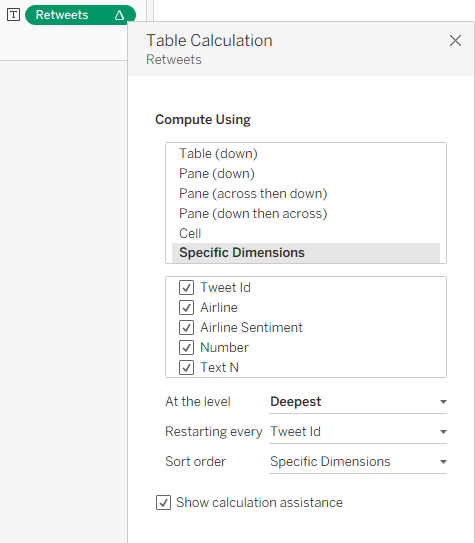
I can add this, and then Edit Table Calculation using the following settings:
This enables me to show the value only for one row, and my finished table, with the additional columns, looks like this:
Summary
The data in this sample dataset isn’t varied, with most tweets being around the same length, but you can see how a flexible number of text lines per data row can improve the look and feel of a Tableau table. So it’s not impossible – you need just a relatively simpke workaround. And that’s part of the power of Tableau: with a little imagination and some calculated fields, you can tweak your visualizations and solve many display problems without any coding.
As usual, this post started from a customer request. They had a nice table set up in Tableau, with Measure Names and Values (quite complicated ones), and they wanted to add a column with an indicator for each row – just a colored dot, but with 4 different colors.
At first I said it couldn’t be done without re-engineering the whole table, but then I thought about it and suggested a solution similar to the following example, which is already working nicely in production.
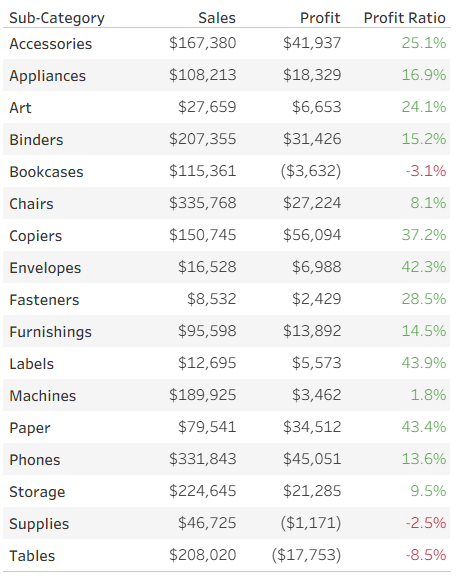
Let’s start with a simple table of measures, already colored using Separate Color Legends:
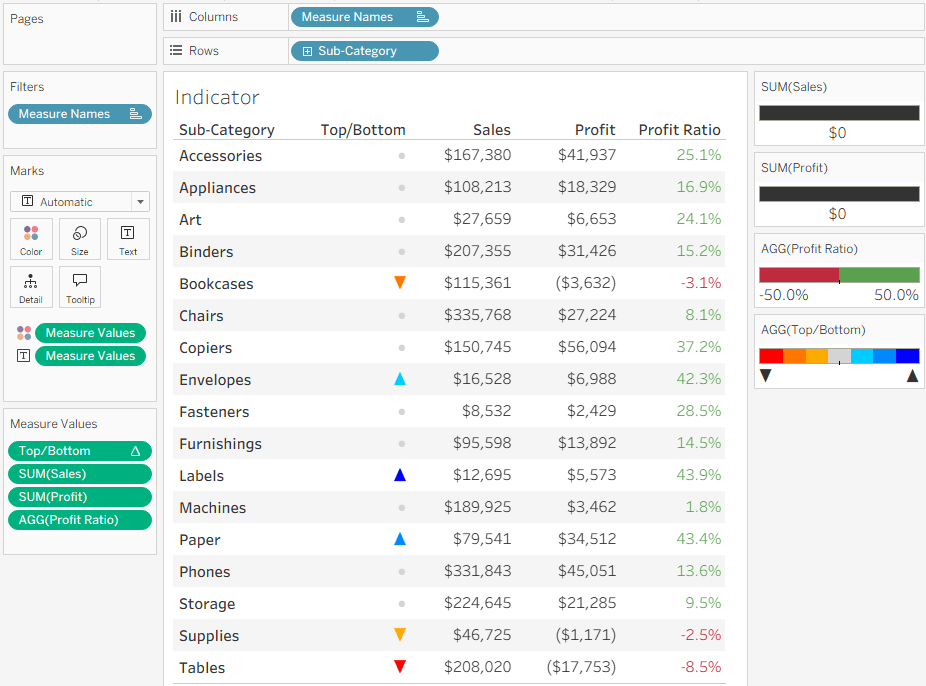
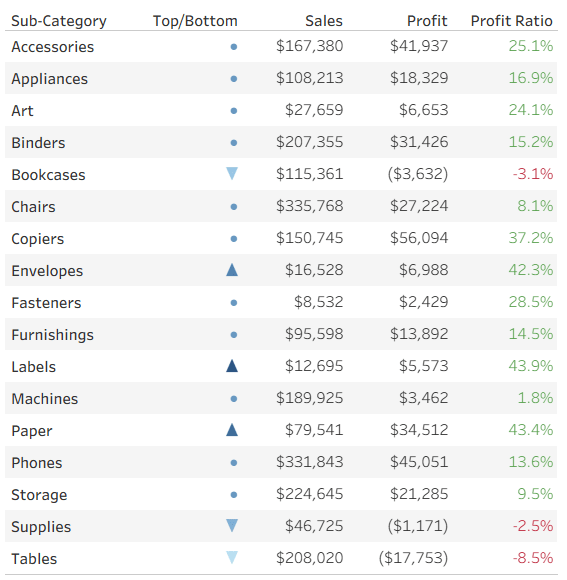
Now we want to add a colored indicator for some of the rows, based on a calculated field – I’ll take the ranking of Profit Ratio as an example. To stretch Tableau to the limits, my requirement is to display an upward pointing triangle for the top 3 rows (Sub-Categories) in Profit Ratio, a downward pointing triangle for the bottom 3, and a circle for the rest. In addition, the top 3 should be colored in shades of blue, the bottom in red, and the others in light gray. Impossible? No!
I start by defining my calculated field. What I need is a series of numbers, not the actual value (which is displayed separately in this case), and you’ll see later how these numbers support the visual element. I’m aiming for the numbers from 3 to -3:
IF RANK([Profit Ratio]) <= 3 THEN 4 – RANK([Profit Ratio]) ELSEIF RANK([Profit Ratio], “asc”) <= 3 THEN -4 + RANK([Profit Ratio], “asc”) ELSE 0 END
This gives me the values 3, 2, 1 for the top 3 rows, -3, -2, -1 for the bottom 3, and 0 for the rest.
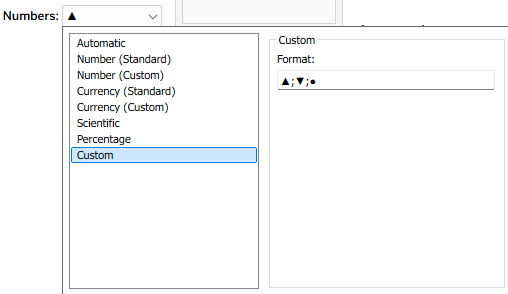
I can now leverage two of Tableau’s formatting features to create my indicators. First, the number format – I define a custom format: ▲;▼;●
What does this mean? Every number format is divided into three sections, separated by semicolons. The first is for positive numbers, the second for negative numbers, and the third for zeros. I’ve told it not to display the actual value, but a single character in each section (it could be any unicode text).
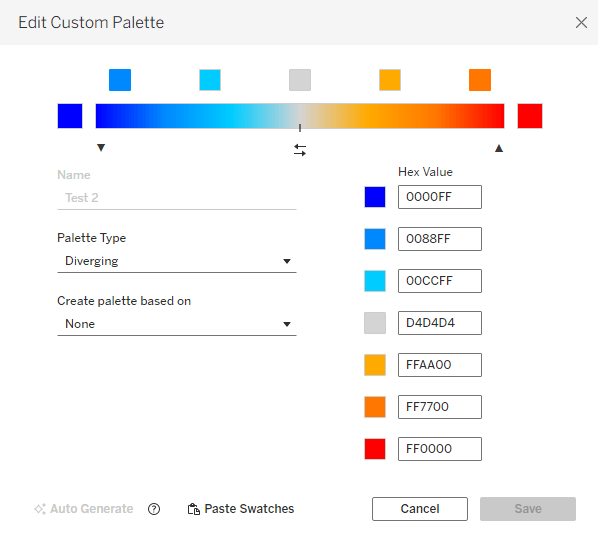
Then, in addition, I can use Tableau’s color options and define a custom diverging color palette, with as many colors as I want. This is much easier in versions from 2025.3 onwards, that have the custom palette editor within Tableau, but can also be done by modifying the preferences file :
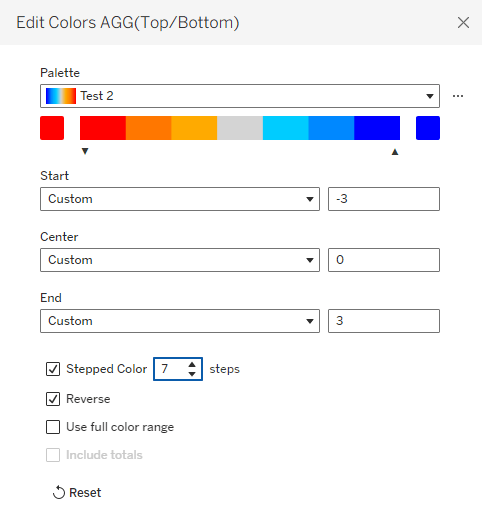
Note that it’s important to define the same number of colors as numbers that I’m using for the indicators, and for the numbers to be evenly distributed. That enables me to fix the palette scale from the lowest to the highest number, and when I define Stepped Color with the corresponding number of steps, each number in my measure gets its own color:
That’s it. I have my indicators in a simple Measure Names/Values table, without changing the whole structure of the worksheet.
Remember that this technique has constraints: not more than 3 special characters or texts, and theoretically you can define any number of colors, but I haven’t checked Tableau’s limit (maybe 20?). But the bottom line is that it allows you to add colored shapes as indicators to a table of measures, as an additional column, and that can be very useful.