Table calculations are one of the most used features of Tableau, but some of their capabilities are less well known, and I’d like to dwell on one of these: Nesting.
Nesting table calculations occurs when one calculated field references another. That’s not a problem in itself, but what happens when we want each of these to behave differently? Compute the first using Table (across), and the second using Table (down)? I’ve found out that many developers don’t know how to do this, so here is a brief explanation.
Let’s illustrate it using an example, based on Superstore data. I want to display sales by Product Sub-Category and period, and highlight the top 3 increases in sales for each period.
I start by creating a simple table with sales by Sub-Category and Year:

The first calculated field is the difference between each year and the previous year:
Period Change: ZN(SUM([Sales])) – ZN(LOOKUP(SUM([Sales]), -1))
Note that this can easily be created using the Quick table calculation menu below, but then the next step would be impossible.
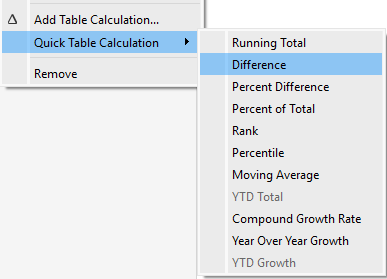
Now I use this field in another table calculation:
Period Change Rank: RANK([Period Change]) <= 3
This should return True for the top 3 changes per period (currently Year). I drag the field to Color, but after I set the colors that I want (green and white), I can’t get the correct results using the “Compute using” options.
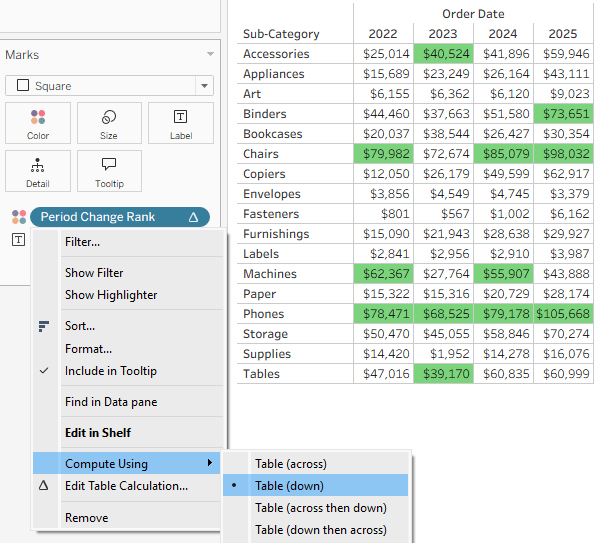
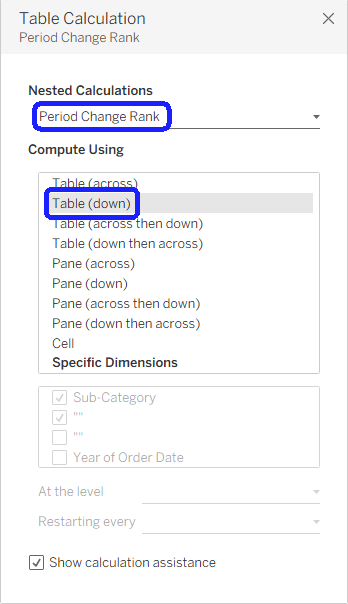
This is where the nested option is necessary, because the difference is calculated across the table (by rows), while the rank is calculated down (by columns). I open the “Edit table calculation” dialog box:

Note that now there is a “Nested Calculations” dropdown, where I can choose the calculation option for each field, and now I can set “Table (across)” for Period Change and “Table (down)” for Period Change Rank. The result is now correct – the highlighted green cells are the top 3 increases for each year.

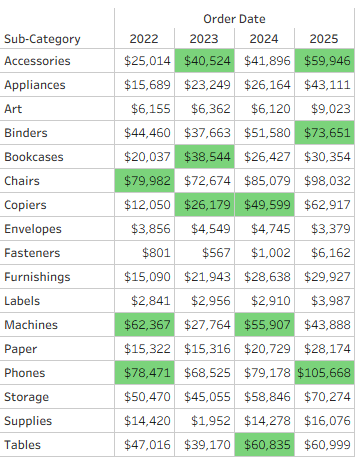
To summarize – table calculations can be nested in two levels or more, and it is important to know that you have the option to set the “Compute using” option of each calculated field separately, enabling various types of analyses.
 BI Stories
Leave a comment